Category: Tips & Strategies

  • What makes a high converting landing page work

    Key takeaways

    • Unbounce’s 6.6% median comes from more than 41,000 pages built on Unbounce, not on WordPress. Industry medians in the same data run from 3.8% for SaaS to 12.3% for entertainment, so use your own baseline.
    • Before you change any copy, submit the form on a phone and confirm the email arrives, then place a test order. A missing Email action in Elementor’s Actions After Submit or a From address that doesn’t match your domain can quietly lose every lead.
    • Google rates LCP at 2.5 seconds or less, INP under 200 ms and CLS under 0.1 as good. Never lazy-load the hero image. Only 40% of WordPress sites passed all three on mobile in 2024.
    • W3C’s guidance is to drop irrelevant or excessive form fields, not necessary ones. Every field needs a real label, and text, including placeholder text, needs 4.5:1 contrast.
    • Change one thing at a time and compare it with a dated baseline. Almost every published landing-page win changed several things at once, so none of them can say which change worked.

    Paid traffic doesn’t tell you when a page is broken. One r/smallbusiness poster spent $2,000 on ads at $75 a day without a conversion. Threads like that one keep finding the same thing: the visitor arrived, but something between the button and the inbox failed, or the page never said clearly what the ad had promised.

    A high-converting landing page isn’t a template. It’s a page that works, loads fast on a phone, and gives one clear offer to the people the ad sent. Check those in that order. Rewriting the headline won’t help if the form email never leaves the server.

    This article covers the diagnosis and the order of work. For layout and visual hierarchy, see our landing page design best practices. If you still need to build the page, start with how to build a landing page in WordPress.

    What counts as “high converting” depends on your offer, not a benchmark

    No single number qualifies a page as high converting. Unbounce’s 2024 benchmark report puts the median landing-page conversion rate at 6.6%, based on more than 41,000 landing pages, 464 million visitors and 57 million conversions. Those are pages built on Unbounce’s own platform, not on WordPress, and the median hides a wide spread.

    In the same data, industry medians run from 3.8% for SaaS to 12.3% for entertainment. Traffic source moves the number just as much. Unbounce reports averages of 19.3% for email traffic, 12% for paid social and 10.9% for paid search. A free download and a $900 service booking aren’t the same conversion. One r/marketing commenter pointed out that 8% might be fine for SaaS account creation and poor for product sales.

    Your real benchmark is your page’s own rate, over a fixed date range, using one definition of a conversion. Count completed actions: a submitted lead, a booked call, a paid order. Don’t count button clicks. Our guide to measuring landing page conversion rate shows how to set up that event so the number holds still while you make changes.

    Why a page that “doesn’t convert” is often a page that doesn’t work

    A page can look perfect and still lose every lead. The form shows its thank-you message while the email never leaves the server. Checkout sits behind a spinner. The tracking tag never fires, so a working page reports zero. The fixes for these are known, so test the real path before you change anything else.

    1. Open the page on a phone, on mobile data, from the ad’s actual URL with its tracking parameters.
    2. Fill in the form as a visitor would, and submit it.
    3. Confirm the lead arrived in the inbox or CRM where your team actually works. Check spam too.
    4. Confirm the thank-you page loads and your analytics recorded the conversion.
    5. If the page sells something, complete a test order with a test payment method and check that the order appears in WooCommerce.

    This test tells you the page works. It doesn’t tell you whether it persuades anyone. Still, it’s the cheapest check you can run, and it rules out the failures that copy changes can’t fix.

    When the form says “sent” but nothing arrives

    Start with the form’s own settings. Elementor’s documentation says Email has to be listed under Actions After Submit for notifications to go out at all. Elementor also warns that form emails can land in spam, and it recommends sending site email through a dedicated email service.

    The next most common cause is the From address. In one 2026 wordpress.org support thread, Contact Form 7 returned mail_failed because the server refused to send mail from an address that didn’t belong to the site. The suggested fix: use a From address on your own domain, put the visitor’s email in Reply-To, and install WP Mail Logging to see what the server said. If your form plugin stores entries in the WordPress admin, check whether submissions are landing there. If they are, the form works and only the email is failing.

    When checkout spins and never finishes

    WooCommerce’s troubleshooting docs say a spinner alone doesn’t tell you the cause. It can be a cached response, an extension conflict, a request blocked by a firewall or a server error. Find out first whether the store uses the Checkout block or the classic checkout. WooCommerce advises against switching checkout types as your first step, because the switch can hide the conflict instead of fixing it.

    Open the browser’s developer tools, find the failing request under Network, and read its status code. WooCommerce maps 403 to a firewall or authorization problem, 404 to a URL or rewrite problem, and 500 to a server-side failure. Separately, WooCommerce’s docs say to exclude Cart, Checkout and My Account from page caching. Before a buyer or tester tries again, check WooCommerce > Orders, because an order may already exist. Our guide to fixing WordPress issues without guessing covers the full sequence.

    When the numbers themselves can’t be trusted

    Check your measurement tools before you trust what they tell you. One r/Wordpress user reported an A/B testing plugin that wasn’t splitting traffic and wasn’t recording most sessions. Submit a test conversion and watch it appear in your analytics before you make any decision based on the data.

    Does the page say exactly what the ad promised?

    Once the page works, the most common advice from practitioners is message match. The visitor should see the ad’s promise in the headline, in the same words, within a second of arriving. Brochure-style homepages, rotating carousels and clever headlines fail this test because the visitor has to work out the offer for themselves.

    The fixes repeated across Reddit, X and agency write-ups are consistent:

    • One audience, one problem. A page for “anyone who needs a website” persuades nobody in particular.
    • Proof on the first screen. A named result, a sourced rating or a short case study (problem, fix, outcome) near the button, not in the footer.
    • Price and commitment in plain view. Fees, contract length and “card required” belong near the button. Visitors who find them in the FAQ later trust the page less.
    • One obvious next step. Repeat the same action after the proof. Don’t add a second, different offer.

    The supporting numbers are self-reported, so treat them as direction, not forecasts. A coaching business on r/smallbusiness said its ad return rose from about 2× to 3× ad spend after it stopped sending ads to the homepage and built a dedicated page. A home-inspection company on the same subreddit tested two calls to action. “Free Quote” converted 23% of visitors, and 29% of those leads became customers. “Contact Now” converted 20%, and 38% of those leads became customers. The button with the lower conversion rate brought in better leads. That is one reason to judge a page on qualified leads, not on submissions alone.

    Is it fast on the phone your visitors actually use?

    In Unbounce’s data, 83% of landing-page visits came from mobile, while desktop visitors converted 8% better. A slow page loses people before they read the headline. Google rates Core Web Vitals as good when Largest Contentful Paint is 2.5 seconds or less, Interaction to Next Paint is 200 ms or less, and Cumulative Layout Shift is 0.1 or less. Most WordPress sites still miss that bar. HTTP Archive’s 2024 Web Almanac found that 40% of WordPress sites passed all three on mobile, up from 28% in 2023.

    The most common self-inflicted problem is lazy-loading the hero image. Google’s lazy-loading guidance says not to lazy-load content that is likely to be visible straight away. On most landing pages, the hero image is the LCP element, so it should load first, with high priority. Lazy-load the images further down the page.

    Builder speed settings come with their own warnings. Elementor labels Element Caching and Optimized Control Loading as experimental. Its optimized image loading, which prioritizes the LCP image and lazy-loads below-the-fold images, is listed as stable. Third-party form embeds can undo your optimizations too. One wordpress.org thread reported Kit forms loading about 750 KB of JavaScript that skipped WP Rocket’s and Perfmatters’ delay settings.

    Make one change, then measure again. After you purge a cache, run the test several times: Kinsta’s docs note that the first request after a purge may be a cache MISS, which isn’t how cached visitors experience the page. For the wider responsive checks, see making a mobile friendly website.

    How many form fields should a landing page ask for?

    Ask for as many fields as your team needs to take the next step, and no more. W3C’s forms tutorial says excessive or irrelevant questions can increase abandonment. The wording matters, though: the advice is to cut irrelevant fields, not necessary ones. A quote form without the service area just moves the work to a phone call.

    The form also has to be usable. W3C says each field needs a real <label> whose for matches the field’s id. A placeholder is not a label. Explain required fields and expected formats before the visitor submits. Error messages should name the fix (“Enter a phone number with area code”), not just the fault. WCAG sets minimum text contrast at 4.5:1, or 3:1 for large text, and that applies to the pale grey placeholder text many themes ship with.

    How to tell which change worked when traffic is thin

    Record a baseline before you touch anything: the conversion rate, the date range, the device split and the traffic source. Then make one change and compare a similar period afterwards, with the same ads running. A split test only gives a clear answer when each version gets enough conversions. On a small-business page, an honest before-and-after comparison is usually the better tool.

    Published case studies show why this matters. Elementor’s 2018 NinjaOutreach write-up reports a rise from 0.73% to 5.8%. The same project moved hosts, cut plugins from 30 to 12 and redesigned the page at the same time, so no single change can claim the result. Keep a short log with the date, page, what changed, why, and the metric you expect it to move. A few weeks of that log will tell you more than any benchmark.

    How the work changes when the site does it

    Most of the fixes above are small: a From address, a headline, a cache exclusion, one image’s loading priority. The slow part is the process around them. A marketer who wants six words changed to match a new ad often waits in the same development queue as a site rebuild. Meanwhile the ad keeps spending.

    SiteSelf is an AI agent that works on your existing WordPress site. You describe the job in chat or from Telegram, and the agent does the work on the live site, checks the result and reports what changed. For landing pages that covers both kinds of work: editing page copy and layout and fixing a broken form or page.

    Example request: “Our spring offer page at /spring-offer is getting ad clicks, but no leads have come in since Tuesday. Find out whether the form is sending, fix it, and change the headline to match the ad: ‘Same-week oven cleaning across Leeds.’”

    The agent reads the form plugin’s notification settings and recipient. It checks whether the From address belongs to your domain, and it reads mail or error logs where they exist. Before it changes anything, it tells you what it is about to change, such as moving the From address to your domain and putting the visitor’s email in Reply-To, and whether that change can be undone. It edits the headline and then fetches the changed page to confirm the new text is live. Its report says what it changed, what it checked, and what it found but left alone.

    Access depends on the task. The SiteSelf Connector plugin from the WordPress.org directory covers content and settings work, like the headline and the form plugin’s options. Server logs, code and speed work need hosting (SSH) access.

    The limits matter here. The agent can’t read your inbox, so you still send a test submission and confirm the lead arrived. It doesn’t write to your ad account, analytics or CRM. If Elementor, Divi or Beaver Builder owns the page, the agent refuses the edit and says why. It doesn’t watch the page after the fix, either. Work happens when you ask for it. For cost, see pricing.

    Frequently asked questions

    Do I need a paid page builder to make a landing page convert?

    No. A landing page is an ordinary WordPress page with one job, and the block editor can build one. A builder can save build time, but no source in our research shows that paying for one raises conversions. Our article on whether you need a landing page builder covers the tradeoffs.

    My Elementor Landing Pages menu disappeared. Did I lose my pages?

    No. Elementor deactivated its separate Landing Pages feature for new sites in version 3.22 and deprecated it in Pro 3.27. Elementor says existing landing pages are not affected. Build new campaign pages as regular pages in the standard editor.

    Should a landing page remove the site navigation?

    Focused campaign pages often remove it, so the visitor’s only path is the offer. That’s a design choice, not a rule. Some landing templates hide the menu by design, which confuses site owners who didn’t expect it. Keep the menu if visitors need to check something before they commit, such as your service area.

    One call to action or two?

    Usually one primary action, repeated after the proof. The home-inspection test above suggests a gentler second option can catch visitors who aren’t ready yet. If you add one, track lead quality for each button, not just the click count.

    My landing page returns a 404 while the rest of the site works. What first?

    Go to Settings > Permalinks and click Save Changes without editing anything. WordPress rebuilds its rewrite rules when you do. Then clear every cache layer and test again. If the page is still missing, check whether a plugin or theme conflict is involved.
  • Landing page design best practices for WordPress

    Key takeaways

    • Pick one goal and repeat its button at the top, after the persuasive content and at the bottom. A second, different goal competes with the first.
    • Unbounce’s 2024 benchmark found pages written at a 5th to 7th grade level converted at 11.1%, against 5.3% for professional-level copy. That is a correlation, not proof that simpler copy causes the lift.
    • Don’t lazy-load the hero image. It is usually the largest element on the page, and Google counts a Largest Contentful Paint of 2.5 seconds or less as good.
    • In a block theme, a Front Page template overrides Settings > Reading. That is why some homepage changes appear to do nothing.
    • A checkout that looks right in the editor proves nothing until the page is assigned under WooCommerce > Settings > Advanced and you have placed a test order on the storefront.

    You pay for the traffic. The page looks polished. The leads don’t come. When practitioners audit pages like this, they rarely blame the color palette. They find one of three problems: visitors can’t tell what the offer is, nothing nearby gives them a reason to trust it, or the page is broken in a way nobody saw from the editor.

    The first two are design problems. The third is mostly a WordPress problem, and it is the one most best-practice lists leave out. This article covers all three. If you haven’t built the page yet, start with how to build a landing page in WordPress and come back once you have a draft.

    Why one goal beats one button

    A landing page asks the visitor to take one action. Book a consultation, start a trial, or buy the bundle. If it also offers the newsletter, the blog and a careers link, each one is a decision the visitor has to make before they act.

    “One goal” doesn’t mean one button. WordPress.com’s product landing page guide recommends putting a call to action at the top, another after the persuasive content and another at the bottom. That is the same goal three times, placed where people make up their minds. Two different goals on one page compete with each other.

    Write the goal down before you touch the editor: “A qualified patient requests a consultation.” That sentence tells you what to measure. Count completed requests, not clicks on a button that opens a calendar.

    What the first screen has to answer

    Before anyone scrolls, the first screen should say what this is, who it’s for and what to do next. In practice that means four things:

    • a headline that names the outcome or the service
    • a supporting line with the detail that qualifies the visitor, such as location, price range or availability
    • an image of the actual product or result, not a mood photo
    • a button that describes what happens when it’s clicked

    “Check availability” and “Request a quote” are different promises. Choose the label that matches where the button goes. If a button says “Check availability” and opens a general enquiry form, change the label or the destination. “Learn more” says nothing at all.

    The headline also has to continue whatever brought the visitor in. If the ad said “emergency roof repair in Leeds”, that phrase belongs at the top of the page, not three sections down below a general company introduction. Practitioners call this message match. In community threads it’s one of the most common explanations for a page that converts badly.

    In the block editor, check the Cover or Group block that holds the hero. A large minimum height, heavy padding or vertical centering can push the button below the first screen on a phone, even when it fits on a laptop.

    How simple should the copy be?

    Simpler than you think, and as long as the offer needs. Unbounce’s 2024 Conversion Benchmark Report covered more than 41,000 landing pages. Pages written at a 5th to 7th grade reading level converted at 11.1%, compared with 5.3% for professional-level copy. Difficult words, reading time and word count all correlated negatively with conversion.

    These are correlations on Unbounce-hosted pages. They aren’t proof that cutting words causes the lift. A newsletter signup needs a headline and a field. An unfamiliar service at a high price needs proof, details and an FAQ that answers the objections people actually raise. Cut words that don’t explain the offer, and keep the ones that do.

    The same report puts the median conversion rate across industries at 6.6%, with industry medians ranging from 3.8% for SaaS to 12.3% for events and entertainment. Compare yourself with your own industry and offer, not with the overall figure.

    Where proof and forms belong

    Specific proof works better than general praise. “They explained our VAT position in one call and onboarding took a week” tells a prospect something. “Great service” doesn’t. Put proof next to the place people hesitate, usually beside the button or the form. A testimonials section at the very bottom doesn’t do that job. Use names, photos and logos only when you have permission.

    A form should ask only for what you need to qualify the lead and reply. Keep a field if its answer changes how you follow up. Remove it if it’s there because the template had it. The W3C’s forms tutorial says every control needs a real label, so a placeholder that disappears as the visitor types isn’t enough. Error messages should name the field and say how to fix it.

    Then send a real test enquiry from your phone. Check that the right inbox receives it, that the visitor sees a useful confirmation, and that spam protection doesn’t silently reject real submissions. A form that looks perfect but loses enquiries is broken.

    Trust also depends on what you forget to remove. Auditors regularly find Lorem ipsum, demo pages left in the sitemap and template phone numbers still linked from the call button on live pages. Read the published page from top to bottom before any traffic arrives.

    The same thinking applies to navigation. Remove the journeys that compete with the goal. Keep the information people need before they trust you: contact details, policies and the cart on a shop. Stripping the header and footer completely suits a short paid campaign better than an unfamiliar professional service.

    Design for the phone, then check the desktop

    In Unbounce’s dataset, 83% of visits came from mobile, while desktop converted 8% better on average. Most of your visitors are probably on a phone, and the phone is where the friction is. Design for it first.

    Page builders make this harder than it looks. Elementor’s responsive settings cascade from desktop to tablet to mobile, so a margin set for desktop carries down unless you override it. “Hide on mobile” fixes one screen by removing content from another, and Google indexes the mobile version of your page. Our guide to making a mobile-friendly website covers the theme and builder settings in detail.

    Two accessibility checks catch a lot of mobile breakage. WCAG 2.2 requires a contrast ratio of 4.5:1 for normal text and 3:1 for large text. It also requires content to reflow at a width of 320 CSS pixels without losing information or function. Test on a real phone with the keyboard open, and watch for a sticky bar or cookie banner covering the button.

    Why the hero image decides your load time

    On most landing pages the hero image is the largest element on the first screen, so it sets your Largest Contentful Paint. Google’s Core Web Vitals treat LCP of 2.5 seconds or less as good, along with INP of 200 milliseconds or less and CLS of 0.1 or less, measured at the 75th percentile of real visits.

    The most common self-inflicted delay is a “lazy-load all images” setting in an optimization plugin. web.dev’s LCP guide explains that lazy-loading the LCP image delays the moment the browser starts fetching it. Turn off lazy loading for the hero and keep it for images further down. Put the hero in the page HTML as a real image rather than a CSS background, give every image a width and height so the button doesn’t jump while the page loads, and compress the file. Our guide to optimizing pictures in WordPress covers formats and sizes.

    Speed shows up in results. Portent’s 2022 study found that a B2B site loading in one second converted three times better than one loading in five seconds. That is an association across a limited set of sites, but it points the same way as everything else.

    Measure the live, cached page, not your staging copy. Staging often runs without caching and looks worse than production. Run PageSpeed Insights more than once, and remember that purging the cache slows the site for a while as pages rebuild.

    WordPress checks that catch pages that look finished

    A page can be well designed and still not work. These checks come from official documentation. Each one fails without warning.

    CheckWhereWhat goes wrong
    Which template is servedAppearance > Editor > TemplatesIn a block theme, a Front Page template is used for the front page whatever Settings > Reading says.
    Header and footerElementor page settingsCanvas removes the theme header and footer. Full Width keeps them. Check the published page, not the editor.
    Old Elementor tutorialsElementor ProElementor’s separate Landing Page feature is deprecated and unsupported as of Pro 3.27. Build on a regular page instead.
    IndexingSEO plugin settings, robots.txtnoindex keeps a page out of Google. Blocking the page in robots.txt can stop Google from seeing that noindex tag.
    CheckoutWooCommerce > Settings > AdvancedA custom checkout page that isn’t assigned here won’t work as checkout, however good it looks.
    Shared templatesSite EditorEditing a shared template, including WooCommerce’s Single Product template, changes every page that uses it.

    Run the checks in this order: confirm which page and template WordPress is actually serving, look at it at phone width while logged out, submit the form or place a test order on the storefront, then measure the live page. Logged-in admins often see different banners and a fresher cache than visitors do. Website layout and design on WordPress explains how global styles and templates affect individual pages.

    If you’d rather describe the change in chat and have it made on the live site, SiteSelf handles design changes on existing WordPress sites, though it refuses pages owned by Elementor, Divi or Beaver Builder and tells you why.

    When A/B testing is worth it

    Test after the basics are right, not instead of them. A clearer headline won’t help much if the form drops submissions. Once the offer, the first screen and the plumbing are sound, test one thing at a time: the headline, the button or the hero image.

    Many small sites don’t have the traffic for a meaningful test. In an Unbounce and Ascend2 survey of 264 marketers at businesses with 500 or fewer employees, reported by MarketingProfs, 41% named low traffic as their biggest testing challenge. With limited traffic, don’t declare a winner after a handful of enquiries. Look at form errors, the questions customers ask, session recordings used with proper consent, and whether the traffic was ever a good match for the offer.

    Pages also decay after launch. Offers expire, prices change, forms stop reaching anyone and mobile layouts drift after updates. Put a date in the calendar to reread the page and resubmit the form.

    Frequently asked questions

    Do I need a page builder plugin for a landing page?

    No. The block editor and a suitable template can produce a clean, fast landing page. Builders add visual controls and ready-made layouts, and they also add weight and their own settings to maintain. Our article on whether you need a landing page builder walks through the tradeoff.

    What is a good landing page conversion rate?

    Unbounce’s 2024 median across industries was 6.6%, with industry medians from 3.8% to 12.3%. Your rate depends on your traffic, your offer and what you count as a conversion. Compare yourself with your own past results and your industry, not one headline number.

    Should I remove the header and footer?

    Remove what competes with the goal. Keep contact details, legal links and anything a cautious buyer would look for. In Elementor, Canvas removes both the header and footer, and Full Width keeps them, so pick the one that matches what you actually want to keep.

    Can my landing page be my homepage?

    Yes. Set it under Settings > Reading. If you use a block theme with a Front Page template, edit or remove that template, or your choice won’t take effect. Our guide to editing your homepage covers both cases.

    Is Elementor bad for landing page speed?

    It depends on the page. Heavy addons, nested sections and unoptimized hero images add weight, but a lean Elementor page can still pass Core Web Vitals. Measure your actual live page in PageSpeed Insights instead of going by the builder’s reputation.

    How many form fields should I use?

    No authoritative number exists. Ask for what you need to qualify the lead and reply, and drop the rest. Practitioners report gains from removing even one field, but those are single anecdotes, not rules.

  • Apache web server security for WordPress sites

    Key takeaways

    • W3Techs puts Apache behind 26.5% of WordPress sites with a known web server, against 37.2% for Nginx and 25.3% for LiteSpeed. Nginx ignores .htaccess, and Apache’s default AllowOverride None ignores it too unless the host enables overrides.
    • The rule with the best backing is WordPress’s own FilesMatch block for wp-config.php, .htaccess, .htpasswd and debug.log. Put it outside the # BEGIN WordPress markers or WordPress may overwrite it.
    • Most breakage comes from the hardening itself. AH01797 in the log means an Apache access rule refused the request. ‘not allowed here’ means the directive can’t go in .htaccess. A ModSecurity 403 with a rule ID calls for an exception for that one rule, with the firewall left on.
    • Patchstack attributes 91% of the 11,334 new WordPress vulnerabilities it logged in 2025 to plugins. Server rules reduce risk, but they don’t replace updates, and they don’t clean a hacked site.
    • Do HTTPS in order: certificate, then WordPress URLs, then WooCommerce secure checkout, then direct redirects. Turn on HSTS only once every page loads over HTTPS.

    Apache is rarely the weak point on a WordPress site. Patchstack’s 2026 report counted 11,334 new WordPress vulnerabilities in 2025, and 91% of them were in plugins. Six were in core. So when people talk about Apache web server security for WordPress, they mostly mean configuration: a few rules that make a plugin flaw or an exposed file harder to exploit.

    Those rules also cause a lot of outages, because people paste them in without testing. This guide covers which ones help, how to tell whether your server reads them, and how to work out which rule broke your site.

    What Apache security actually covers on a WordPress site

    It covers four layers. Each one sits next to WordPress’s own security (updates, accounts, backups), not in place of it:

    • Access rules in Apache’s configuration or in .htaccess: blocking sensitive files, turning off directory listings, stopping PHP from running in uploads.
    • HTTPS and redirects: the certificate, the WordPress URL settings, and HTTP-to-HTTPS rules.
    • Security headers: HSTS, Content Security Policy and frame controls.
    • A server-level firewall such as ModSecurity. WordPress’s Hardening handbook recommends one and treats it as separate from plugin firewalls like Wordfence, which run inside WordPress.

    Check that Apache rules apply to your site at all

    Many of them won’t. W3Techs puts Apache at 26.5% of WordPress sites with a known web server. Nginx is at 37.2% and LiteSpeed at 25.3%. Nginx doesn’t read .htaccess, so a rule that works on one host does nothing on another and shows no error. Our guide to setting up .htaccess redirects runs into the same problem.

    Running Apache isn’t enough on its own. Apache’s documentation says the AllowOverride default is None, which means it ignores .htaccess files unless the host allows them. Hosts can also allow some kinds of directive and not others. If you use a directive that isn’t allowed, you get a 500 error instead of protection.

    The simplest check is a support ticket. Ask your host three things:

    • Which web server serves the site?
    • Which AllowOverride classes are enabled?
    • Are mod_rewrite and mod_headers loaded?

    If you control the server, put site-wide rules in the main configuration. Apache’s docs say that gives tighter control than per-directory files.

    Which rules are worth adding

    Add a few targeted rules, one at a time, and test after each. Copied “maximum security” blocks and good grades from header scanners don’t show that a rule suits your site.

    Deny web access to sensitive files

    WordPress’s Apache handbook documents this rule for the root .htaccess:

    <FilesMatch "^(wp-config\.php|\.htaccess|\.htpasswd|debug\.log)$">
      Require all denied
    </FilesMatch>

    The handbook also suggests blocking install.php once the site is installed. Require all denied is Apache 2.4 syntax. Older guides use Deny from all, which is the 2.2 form, so match the syntax to your server version. Blocking wp-config.php over the web doesn’t replace tight file permissions on it.

    Turn off directory listings and PHP in uploads

    When a folder has no index file, Apache can list everything in it. Options -Indexes turns that off, but only if the host allows Options overrides.

    For uploads, block PHP from running instead of blocking the whole folder, which would break images. In wp-content/uploads/.htaccess:

    <FilesMatch "\.(php|phtml|phar)$">
      Require all denied
    </FilesMatch>

    This doesn’t make private files private. Anything else in uploads can still be loaded by anyone with its URL.

    Know the documented ways these rules break things

    WordPress’s Hardening handbook lists the failure modes plainly:

    • Password-protecting /wp-admin/ carelessly breaks admin-ajax.php. Many front-end features depend on that file.
    • The wp-includes rule stops ms-files.php generating images on Multisite.
    • Custom rules belong outside the # BEGIN WordPress / # END WordPress markers, because WordPress may overwrite anything between them.

    Moving wp-config.php has disputed value. The handbook only documents moving it one level above the install, and it warns that doing it carelessly can create serious holes.

    Permissions follow the same least-privilege logic. WordPress’s permissions page gives 755 for directories and 644 for files as examples, not fixed rules. It notes that .htaccess has to be writable if you want WordPress to update rewrite rules. Never use 777. Hiding the WordPress version is fine to do, but the handbook calls obscurity an unsound main strategy.

    Get HTTPS right, in this order

    Turning on HTTPS is a sequence of steps. Force it before the certificate and settings are ready and the site can lock everyone out. WooCommerce’s SSL documentation says most payment gateways require SSL. The order:

    1. Install the certificate and check it is valid on every hostname.
    2. Set WordPress Address and Site Address to https:// under Settings > General.
    3. On a store, turn on secure checkout under WooCommerce > Settings > Advanced. It covers Checkout, My Account and the Pay endpoint.
    4. Add an HTTP-to-HTTPS redirect that goes straight to the final URL, with no chain.
    5. Make sure canonicals use HTTPS. Google Search Central prefers HTTPS canonicals. It says an invalid certificate, a redirect through HTTP or an HTTP canonical are conflicting signals.
    6. Turn on HSTS last, once every page loads over HTTPS.

    Why headers and CSP need one owner

    Set each header in one place only: the server config, the cache layer or a plugin. Headers added from PHP don’t reach cached pages or static files that never touch WordPress, so the policy visitors get can differ from the one you wrote. Setting a header in two places gives you duplicates. After any change, purge the cache and check the live headers on a cached page and an uncached one.

    Content Security Policy goes wrong in two directions. Make it too strict and it blocks legitimate scripts. “Fix” the violation reports by allowing every origin or unsafe-eval and the policy stops protecting much. Start it in Report-Only mode and click through the real site: forms, embeds, analytics, logged-in views and, on a store, the full checkout and payment flow. Enforce it only after that.

    When hardening breaks the site, the log names the rule

    Most hardening failures are self-inflicted. A rule is too broad, it isn’t allowed in .htaccess, or it clashes with another rule. The Apache error log (in cPanel, usually under Metrics > Errors) often tells you which one.

    What you seeLog lineLikely cause
    500 error after an edit<Directory not allowed hereA server-only directive pasted into .htaccess
    500 error after adding headersInvalid command 'Header'mod_headers isn’t loaded
    500 or rules ignoredRewriteEngine not allowed hereOverrides not permitted
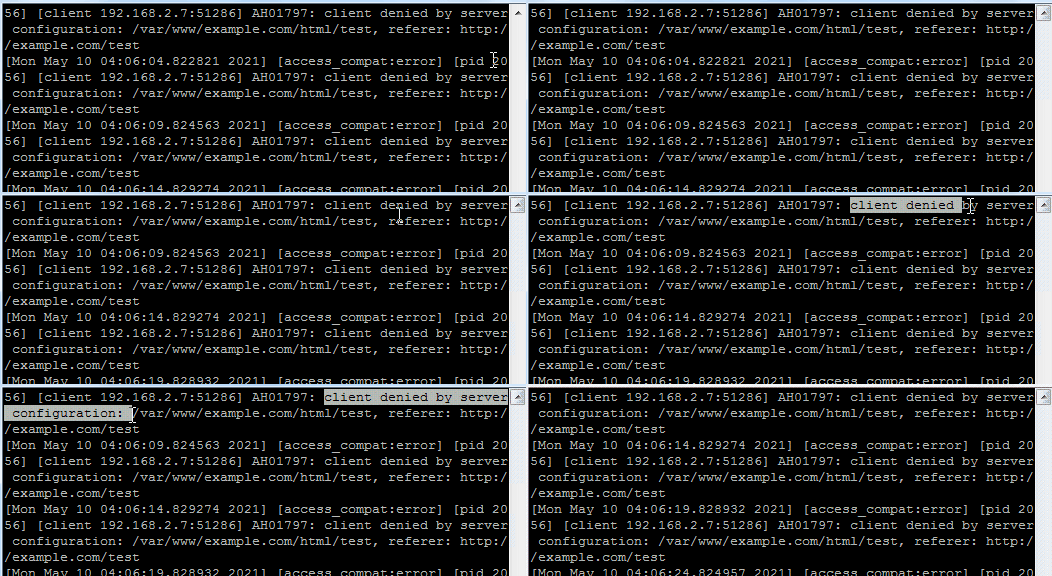
    403 on a path that should workAH01797: client denied by server configurationAn Apache access rule matched
    403 or 406 page branded by the hostModSecurity: Access denied with code 403 plus a rule IDA server firewall false positive
    Apache error log showing AH01797 client denied by server configuration
    Apache error logs record the AH01797 code alongside the exact requested path whenever an access restriction blocks an incoming request. · Source: www.budgetvm.com

    For a 500 after editing .htaccess:

    1. Download a copy of the file.
    2. Read the error log.
    3. Comment out the newest rules.
    4. If the site still fails, rename the file to .htaccess-old as a test.
    5. Once the site loads, rebuild WordPress’s block by saving Settings > Permalinks.

    Removing the file brings the site back but drops your redirects, so put them back afterwards. Our white screen guide goes through the same order for fatal errors.

    If pretty permalinks return 404s, WordPress’s Common errors page points to mod_rewrite being off or the rules being missing. Save the permalinks page again. If that fails, save a different structure, then switch back.

    Firewall false positives need a narrow fix. In one WordPress.org thread, ModSecurity rule 214540 in a COMODO rule set blocked the Google Tag Manager iframe after GTM4WP 1.16. A SecRuleRemoveById exception for that one rule fixed the 403. On shared hosting, the host adds that exception. Switching the whole firewall off is useful as a quick test, never as the fix. Plugin firewalls work the same way: allowlist the one request that was blocked, then turn protection back on.

    Don’t assume every symptom is a server block, either. In another thread, a store owner whose customers couldn’t check out found AH01797 lines from directory-hardening rules the host had added to wp-content and uploads. The replacement rules didn’t fix checkout. The log line and the customer complaint were two separate problems.

    Reading the log and fixing the rule is the kind of work SiteSelf’s agent does on request through WordPress bug fixes. Editing .htaccess needs hosting (SSH) access, and the agent reports what it changed and what it checked.

    Hardening won’t clean a hacked site

    Malicious .htaccess rules are a common sign of infection. Sucuri found allow/deny rules tied to Japanese SEO spam on 10.07% of the infected sites it cleaned in 2023. That sample isn’t limited to WordPress or Apache. WordPress.org support threads show the other side too: .htaccess files reinfected again and again, despite security plugins, a CDN and read-only permissions. The infection was still somewhere else on the site.

    If rules keep reappearing, clean up first, then harden. Our guide to malware removal that holds covers finding the entry point. Before you restore anything, check what your backup plugin actually covers, because restoring a backup that already contains the malware brings it straight back.

    When to stop and ask the host

    Stop when the fix needs something you can’t reach: the main Apache config, a ModSecurity exception, module changes or the Apache version itself. On shared and managed hosting, all of those belong to the host. Send a specific request with the URL, the time, the log line and the rule ID. A vague “please harden Apache” ticket won’t get you far.

    A bare VPS is different. Patching, certificates, backups and PHP versions are your job or your developer’s. If nobody has that time, managed hosting costs less than the outage. On a store, take payments through an external gateway so card data never sits on the server.

    Hosting file manager showing the WordPress .htaccess file for Apache security rules
    Enabling hidden files in your hosting file manager ensures the .htaccess file appears in the directory list for editing. · Source: www.hostgator.com

    Frequently asked questions

    Does .htaccess work on Nginx?

    No. Nginx ignores .htaccess completely, so the same protections have to be written into the Nginx server configuration, usually by the host. Plugins that rely on .htaccess for access control can leave an Nginx site unprotected without showing any error.

    Does LiteSpeed read Apache .htaccess rules?

    LiteSpeed reads Apache-style .htaccess files, and WordPress’s rewrite block generally works there. Don’t assume every Apache directive behaves the same way. Test each security rule on the live site and check the error log.

    Should I block xmlrpc.php?

    Block it only if nothing uses it. Some mobile apps, publishing tools and integrations still depend on XML-RPC, so check what connects to the site before you block it, and test those connections afterwards.

    Is 777 ever acceptable to fix a failing update?

    No. 777 lets any user on the server write to the file or folder. If updates fail, the cause is usually file ownership, and the host can fix that properly. WordPress’s permissions page gives 755 and 644 as starting examples.

    Does noindex keep a new site hidden from attackers?

    No. Noindex only affects search results. Automated scanners probe every public IP and hostname. Build the site locally or behind a password until launch, and add the access rules before it goes public.

    Should I update Apache myself?

    Only if you manage the server. On shared or managed hosting, the host patches Apache and its modules. Ask which version you are on and how quickly they apply security releases.

  • How to manage multiple WordPress websites

    Key takeaways

    • “Multiple sites” covers four different setups: separate installs, a Multisite network, one WooCommerce store with several locations, and separate stores that share data. Each one needs a different tool.
    • WordPress’s own Multisite handbook starts with “Do you really need a network?” For unrelated client sites, the usual answer is separate installs connected to a dashboard like MainWP or ManageWP.
    • A dashboard reporting a finished update means the update ran. It does not mean the contact form, the checkout or the templates still work. Check each site based on its risk.
    • A dashboard holds admin access to every connected site, so it becomes the most valuable login you have. Lock it down like one.
    • Dashboards handle maintenance, not content changes, store reporting or the duplicate-site rules in Google’s spam policies. Plan for those separately.

    Here’s a typical Tuesday. The phone number needs changing on three client sites, two others need a campaign page, a WooCommerce promotion has to go live, and a contact form somewhere stopped sending notifications. Every one of those sites has its own login, theme, plugins and host, plus years of earlier changes nobody wrote down.

    A longer spreadsheet won’t fix that. What helps is three decisions made in order: how the sites are set up, how routine maintenance runs across all of them, and who handles the exceptions that maintenance turns up. Most advice starts with the second one. Start with the first.

    Which kind of “multiple sites” do you actually have?

    “Managing multiple WordPress sites” can mean four different setups, and each needs a different tool. Mixing them up is the most expensive mistake in this area, because undoing a bad setup choice later means a migration.

    Your situationThe setup that fitsWhat it does not do
    Independent sites: different clients, brands or ownersSeparate installs, managed from a central dashboard or your host’s panelShare content, users or plugins between sites
    Related sites that share a design, plugins and adminsWordPress Multisite: one installation running a network of sitesKeep sites isolated, or share data between them
    One shop with several physical locationsA location extension inside one WooCommerce storeConnect shops that already run as separate sites
    Separate WooCommerce stores that need the same products or ordersA sync extension that connects the stores through the WooCommerce REST APIHandle updates, backups or security

    Multisite is the option people choose too quickly. WordPress’s own guide to preparing a network opens with “Do you really need a network?” before it lists any requirements. A network runs one copy of WordPress core. Plugins and themes are installed at network level, and every site depends on the same server. That’s convenient for a group of regional sites built from one design system. It’s a liability for twelve unrelated clients, because one bad plugin update reaches all of them, and moving one client out later is real work. If your sites really do belong together, our guide to WordPress Multisite installation walks through the setup.

    The store options get confused just as often. WooCommerce’s Multi Store Manager adds location-based shops with their own products, prices, stock and orders, all inside one WooCommerce site. Installing it won’t merge two shops you already run separately. For that you need Products and Orders Sync or something similar, with API keys on each store.

    Why separate installs plus a dashboard is the usual answer

    For independent sites, keep each one as its own installation and connect them all to one control panel. Each site keeps its own database, its own update timing and its own backups. The dashboard takes away the repeated logins.

    The two names that come up most often in practitioner threads work differently:

    • MainWP is self-hosted. You install the MainWP Dashboard plugin on a WordPress site you control, then put the MainWP Child plugin on each site you want to manage. You own the data and the server, and you also maintain both.
    • ManageWP is hosted. You connect each site through the ManageWP Worker plugin and run everything from their web app. It’s less to maintain, and you depend on their service.

    Many managed hosts also include a multi-site panel for the sites they host. That’s often enough if every site lives with one host. Whichever tool you pick, the core features are similar: bulk updates for core, plugins and themes, backups, uptime checks, security scans and client reports.

    A dashboard holds admin-level access to every connected site, which makes it the most valuable account you run. Practitioners on r/Wordpress have described incidents where one compromised dashboard account or an unpatched management plugin exposed every connected client site. Treat the dashboard login like the keys to your whole client list. Use two-factor authentication, keep the list of people who can log in short, update the dashboard first, and remove sites you no longer look after.

    When a site refuses to connect

    Most connection failures come from a security layer sitting in front of the site, not from a missing plugin. A firewall, a host’s web application firewall, a security plugin or a CDN sees the dashboard’s requests as automated traffic and drops them. MainWP’s connection test reference links each HTTP status code to a likely cause. Roughly, a 403 means something refused the request, and a 404 means the child plugin isn’t answering.

    The fix is to find the rule that blocked the request and ask the host to allow the dashboard’s IP address. Turning protection off until the site connects is not the fix, because it leaves the site exposed. If the site recently moved hosts or domains, check that DNS and the site URL point to the new place before you assume anything is broken.

    Why the update is easy and the check is hard

    Running updates across 50 sites takes minutes. Confirming that 50 sites still work afterwards is the actual job. Practitioners agree on this more than anything else. A dashboard that reports “updated” is telling you the update ran. It has no idea whether the booking form on one site now fails without any error.

    Checking every page by hand doesn’t pay on a care plan. Skipping checks means your clients find the breakage first. The workable middle is to check each site based on how much damage a failure would do:

    1. Back up first, and know you can restore. WordPress.org’s plugin documentation says to make a current backup before updating. A backup job that reports success only proves a file was written, so test a restore now and then. Our explainer on what a backup plugin covers lists what “full backup” often leaves out.
    2. Sync, then update in batches. Refresh the dashboard’s data before you act on it. Update brochure sites together, and keep stores and custom-coded sites in their own group.
    3. Check the pages that make money. On simple sites, load the homepage, the contact page and any form. On stores, test the cart and checkout, and run a test order if the update touched payments.
    4. Use staging for high-risk sites. Test WooCommerce, membership and heavily customized sites on a copy first. Some teams also hold major releases for a few days.
    5. Write down the exceptions. If one site out of forty fails, the batch didn’t succeed. Record which site failed, what broke and what you did about it.

    Learn what failure looks like, because a bulk run can leave several sites in the same state. “Briefly unavailable for scheduled maintenance. Please check back in a minute.” usually means an update stopped halfway and left a .maintenance file in the site root. “There has been a critical error on this website.” means PHP hit a fatal error. The details go to the admin email address or to wp-content/debug.log if debugging is on. WordPress’s common errors handbook covers both. Our guide to fixing plugins that stopped working goes through the cleanup.

    WordPress briefly unavailable for scheduled maintenance message after a failed bulk update
    An interrupted update traps WordPress in maintenance mode, displaying this generic notice until the lingering temporary file is manually cleared. · Source: kinsta.com

    To find which plugin caused a conflict without taking a client site down, use the Health Check plugin’s troubleshooting mode. It disables plugins and switches to a default theme for your logged-in session only, so visitors keep seeing the normal site while you turn things back on one at a time.

    Standardize the stack before you automate it

    A dashboard makes a stable portfolio cheaper to run. It doesn’t make an unstable one stable. When someone on r/Wordpress described 20-plus sites breaking every day, the replies were nearly unanimous: fix the hosting, the plugins and the access problems first, then add a dashboard.

    The biggest factor is how many different plugins and themes your sites run. Every extra plugin that appears on only one site makes the next bulk update harder to predict. The habits that reduce failures are simple:

    • Keep a short approved plugin list for new builds, and build new sites from a clean copy of a good one.
    • Remove abandoned plugins, and replace ones the client picked that no longer get updates.
    • Put sites on as few hosts and PHP versions as you can.
    • Keep a current list of every plugin and version on each site. Listing plugins with wp plugin list exports one per site in seconds.
    • Have SSH or file access to every site, so you can rename a broken plugin’s folder when the dashboard can’t reach the site.

    Teams with developers go further: version control, staging and automated tests that run before anything reaches production. That’s worth it with hundreds of sites. With fifteen, a disciplined manual routine is usually enough.

    What a management dashboard does not cover

    Dashboards do maintenance: updates, backups, uptime and security. Several other jobs come with running a portfolio, and they need their own plan.

    Content and small changes. The phone number on three sites, the campaign page and the broken form from the opening never show up in an update queue. They arrive as requests, they differ for each site because each site’s header and footer are built differently, and they take up the delivery time a care plan was priced to protect. Changing six words in a footer shouldn’t need a ticket, a developer and a deployment window. On most agency teams, it still does.

    Store reporting. A maintenance dashboard won’t combine orders, revenue or inventory from several WooCommerce stores. Operators who want one sales view across shops use a separate WooCommerce reporting tool for that.

    Search. Google’s spam policies treat sets of near-identical sites, or city-targeted sites that funnel visitors to one destination, as doorway abuse. If you build regional sites from one template, each one needs content of its own.

    Accessibility. A shared template spreads its flaws to every site built from it. Fix contrast, focus states and form labels in the template, then check each site too, because the content on each one adds its own problems.

    Our explainer on what maintenance packages actually cover helps draw this line when you scope a client plan.

    How the work changes when an agent handles the exceptions

    The routine part of multi-site maintenance is already automated. What’s left is the work that lands on a person: the one site out of forty that broke, the form that stopped sending, the wording change that differs on every site. That’s the work SiteSelf is for. It joins your stack and doesn’t replace your dashboard or your host.

    Example request: “After last night’s plugin updates, the contact form on harbourdental.com stopped sending notification emails. Find out why, fix it, and tell me what changed.”

    Here’s what the agent would do. It reads the site’s error log and the form plugin’s settings. It compares what changed with the update, then applies the fix: a setting, a conflicting plugin, or a mail configuration that the update reset. Before the change, it says what is about to change and whether that can be undone. Afterwards it fetches the contact page, confirms the page loads with the form in place, and reports in chat what it changed and what it checked. The work is recorded, so the next person who opens that client’s thread can see what happened.

    For access, settings and content work goes through the SiteSelf Connector plugin from the WordPress.org directory. Reading logs, editing files and reverting a plugin needs hosting (SSH) access to that site.

    There are honest limits. The check is a fetch of the changed page and a plain-language report. It’s not a test submission from a real inbox and not a full device test, so send yourself one test message. Pages owned by Elementor, Divi or Beaver Builder are refused when the work starts, with the reason given. Nothing runs on a schedule and nothing watches the sites. The agent works when someone asks, so your dashboard keeps handling the routine updates. The page on client site work for agencies shows how this fits a retainer, and pricing explains how credits work.

    Frequently asked questions

    Can I manage multiple WordPress sites without Multisite?

    Yes, and for independent sites you usually should. Keep each site as its own install and connect them to a dashboard or your host’s multi-site panel. You get central updates and backups without one network’s problems reaching every client.

    How many sites justify Multisite?

    No number settles it. The question is whether the sites belong together: the same owner, the same design, the same plugins and the same admins. Two closely related sites can suit a network. Twenty unrelated client sites usually don’t.

    Can I run several WordPress sites on one hosting account?

    Yes. Most hosting plans allow several separate installs. The limit is server resources. Once one busy site slows the others down, move the heaviest sites out one at a time rather than migrating everything at once.

    Should I let the dashboard auto-update plugins?

    Auto-updates are reasonable for low-risk plugins on simple sites, as long as you have a backup you have tested restoring. For payment, membership, caching and page builder plugins, update them yourself, check the site afterwards, and take care with stores.

    Can one dashboard manage several WooCommerce stores?

    For maintenance, yes: updates, backups and uptime work the same as for any WordPress site. For business data such as combined orders, revenue and stock, no. You need a WooCommerce reporting tool, or a sync extension if the stores have to share products or orders.

    Is it safe to copy the same page to several sites?

    A shared policy or legal page is fine. Whole sites that differ only in a city name or a small wording change risk falling under Google’s doorway rules. Give each site content its visitors can’t get from the others.

  • Theme customization in WordPress that survives updates

    Key takeaways

    • Classic themes are customized at Appearance then Customize. Block themes use Appearance then Editor, and WordPress.org’s documentation says the Site Editor only appears when a block theme is active. A missing Customize link usually means you are on a block theme.
    • Presentation belongs in the theme, behaviour belongs in a plugin. Anything that has to survive a theme change, not just a theme update, should never live in theme files.
    • “My change did not appear” is more often a stale cache layer or a save request that failed than a CSS problem. Open the browser Network tab before you reach for !important.
    • A child theme only protects you if the style.css header names the parent folder exactly and the parent stylesheet is loaded properly. Improperly linked child themes and wrong wp-content permissions are a recurring cause of failed customizations.
    • No public, sourced price range for theme customization exists. Buy a paid audit and a written spec first, then ask for a fixed price, because revision loops cost more than the hourly rate difference.

    A change written straight into a parent theme’s footer.php lasts until the next theme update replaces that file. A change made in the Customizer lasts until you switch themes. A change made inside a page builder lasts until you stop using the builder. Theme customization in WordPress is not one task. It is a decision about which layer holds the change and how long you need it to hold.

    Two things go wrong, and they look different from each other. Either the change vanishes, quietly, weeks later during an update. Or the change takes the front end down now, with a critical error naming a file you have never opened. The methods below are ordered by how much they can break, and the diagnosis section is ordered by how often each cause actually turns up.

    If what you want is the step-by-step for working in theme files themselves, that is covered separately in the guide on how to edit themes in WordPress. This piece is about choosing the layer and recovering when the change does not stick.

    Match the change to the layer that should hold it

    The single best architectural rule from practitioners is short: presentation belongs in the theme, behaviour belongs in a plugin. If a tracking snippet, a shortcode, a custom post type or a form handler lives in functions.php, it dies the day someone changes theme. That is not a theme update problem, and a child theme does not solve it.

    What you are changingWhere it belongsWhat it survives
    Logo, colors, menus, site identityTheme settings: the Customizer, or Styles in the Site EditorUpdates to the same theme. Not a theme switch.
    One spacing fix, a hover state, a scoped tweakAdditional CSS, or per-block custom CSSUpdates. Additional CSS is stored per theme.
    Typography, spacing and color as a systemtheme.json in a child theme, or Styles in the Site EditorUpdates, and new pages inherit it.
    Template markup, WooCommerce product layoutA child theme, overriding only the file you needUpdates, but you now own that file forever.
    Behaviour that must outlive the themeA small site-specific plugin or a snippets pluginTheme updates and theme switches.
    The theme fights you at every stepA different theme, or a rebuildNothing. This is the expensive answer, so be sure.

    The working heuristic: use the least powerful tool that solves the problem. A promotional button color does not need a template override. A publisher standardising article typography across every template does need a system, not thirty one-off rules. Solving the same design problem three different ways in three places is how maintenance debt starts.

    Whichever layer holds it, a change can look right and still make the site harder to use. W3C’s WCAG quick reference sets a minimum contrast ratio of 4.5:1 for normal-sized text. A new button color, or light gray body text, can fall below it. A common CSS reset removes focus outlines, and then keyboard users cannot see where they are on the page. After any color or navigation change, check contrast, tab through the menu and forms, and make sure links still stand out by more than color alone.

    Classic theme or block theme decides where you work

    Classic themes are customized at Appearance then Customize. WordPress.org’s documentation describes the Customizer as arriving in WordPress 3.4, with sections including Site Identity, Colors, Menus, Widgets and Additional CSS, and a live preview before you publish. Themes add their own sections here too, often under a name like Theme Options.

    Block themes are customized at Appearance then Editor. WordPress.org’s documentation says the Site Editor is only available when a block theme is installed and active. That single sentence answers the most common confusion in this whole subject: if Appearance then Customize is missing, you are almost certainly on a block theme, and the settings you are hunting for are in Styles or in a template.

    WordPress Site Editor Styles panel used for block theme customization
    The Styles panel within the WordPress Site Editor provides comprehensive controls for site-wide design elements like colors, centralizing customization for block themes. · Source: wordpress.org

    Be ready for the block model to feel less inspectable than it looks in marketing. Experienced builders report the same short list of frustrations: block boundaries are hard to see without hovering, the code editor fills with inline styles and JSON-like data, changing something as small as a block background color can leave escaped CSS variable names elsewhere, and selecting blocks lags while the canvas re-renders. The common responses are the old ones, a child theme plus custom CSS, or a move to a page builder. The WordPress developer blog’s February 2026 post lists per-block custom CSS among the changes arriving with WordPress 7.0, which takes some pressure off the second choice.

    Page builders are a real option for marketing pages and a real dependency everywhere else. Support threads show builder features that cannot be fully switched off because no option or hook exists, plugin updates that add dashboard menu items nobody asked for, and a version bump breaking icons in the Customizer. None of that makes those products unreliable. It does mean your design work becomes coupled to that plugin’s release schedule.

    Child theme rules that decide whether the safeguard holds

    WordPress’s Theme Handbook describes a child theme as a way to modify an existing theme without directly editing that theme’s code, and walks through creating the folder, creating style.css, activating it, then loading the stylesheet and using functions.php. Two details do the actual work: the Template line in the child’s style.css header has to match the parent theme’s folder name exactly, and the parent stylesheet should be enqueued from functions.php rather than pulled in with @import.

    The safeguard is also a failure source. Practitioners report improperly linked child themes and wrong wp-content permissions as recurring reasons customizations do not apply, alongside files uploaded to the wrong installation. If your child theme “does nothing”, check the parent folder name, the file paths, and whether the upload actually reached production before you rewrite any CSS.

    Keep the copying minimal. Override one template, not the parent’s whole structure. Every duplicated file stops receiving the parent developer’s bug fixes and markup changes the moment you copy it. Prefer hooks and filters where the parent theme exposes them. For stores, WooCommerce’s developer docs cover overriding templates through a theme and keep a separate page on fixing outdated templates, which is the mechanism that tells you when a copied file has drifted behind the plugin.

    Existing modifications first, child theme second. The sequence practitioners recommend is: document or back up what has already been changed, restore the original theme, create the child theme, then reapply the customizations inside it. Budget hours for this, not minutes. And do not do it live on a site taking orders. Staging that mirrors production is the one operational rule the community data agrees on without argument.

    When the change does not appear, diagnose in this order

    The same symptom has at least five causes, and they are not equally likely. Work down the list rather than guessing.

    1. Stale output, held somewhere you did not clear. This is the most frequently reported cause by a distance, and the mistake is rarely “forgot to clear the cache”. It is clearing only the browser while the old copy sits with the host, the CDN, or the builder’s generated CSS file. Publish again, purge browser, WordPress cache plugin, host and CDN, then regenerate CSS and JavaScript assets. Then confirm the page, domain, template and file you edited are the ones being served. Staging URLs and duplicated templates absorb a lot of wasted afternoons.
    2. The save never happened. A failed or blocked save looks exactly like a caching problem. Open the browser Network and Console tabs and watch the request when you press Update. A security rule at the host rejecting the request, or a rejected JSON payload, produces a silent non-change. Repeatedly pressing Update is the anti-pattern here.
    3. A plugin conflict, usually a builder or a customization plugin. Confirm a current backup, enable troubleshooting mode, disable plugins, test on a default theme, then reactivate one component at a time until the fault returns. Reactivating everything at once tells you nothing. Stacking !important on top of an unidentified conflict makes the eventual fix harder. The isolation process is written out in more detail in the guide to WordPress plugins that are not working.
    4. Theme or plugin code that throws a fatal error. Here you get evidence: a stack trace naming a file and a line, such as a Customizer failure inside a theme’s own WooCommerce options file. Follow the trace to the component, then disable or update that component. Do not patch the named file reflexively, because it may simply be the last file accessed before a hosting-level failure. If the front end has gone blank, start with the recovery steps for a WordPress website white screen.
    5. Server configuration wearing a theme costume. PHP version, memory and execution limits, file permissions, firewall and ModSecurity rules, and settings like allow_url_fopen cannot be fixed inside the theme. Builder vendors send people to their host for exactly these checks. If you have isolated the fault to none of the above, escalate rather than keep editing CSS.
    WordPress critical error message after a theme customization change
    This critical error message signals a fatal issue on your WordPress site, often pointing to a specific component that needs disabling. · Source: www.wpbeginner.com

    If the dashboard itself is unreachable after an update, rename wp-content/plugins in the host’s file manager to get back in, then restore the folder and deactivate plugins individually. Do not edit files in /wp-admin or /wp-includes, and do not patch core as a first response. Those changes are undone by the next core update and hide the real cause in the meantime.

    What to check before you choose a theme

    If the current theme cannot be customized far enough, the last row of the table above applies: a different theme. A demo shows you what a theme can look like. It does not show you what editing it will feel like six months after launch. Test these things instead.

    • The editing model. A block theme gives you visual control over templates. A classic theme gives you whatever its panels expose. Try the theme’s editor before committing.
    • The changes you will make most. Open the theme’s documentation and check that the header, footer, mobile menu, content width and archive layout can be edited without code.
    • Your plugins. If you run WooCommerce, a form plugin or a builder, build a real product page or form on a staging copy. A polished demo does not prove compatibility.
    • Maintenance. Look at the update history and the support channel. A plainer theme with clear templates is often cheaper to own than one packed with features.

    Your site will also never look exactly like the demo, because the demo uses its own images and copy. Import starter content onto a fresh install or a staging copy, not a live site. Installation problems are covered in the guide to installing a theme without breaking it.

    What theme customization should cost, and where the money goes

    There is no defensible published price range, and anyone quoting one is quoting a forum comment. What community threads do agree on is the shape of the waste. Very cheap work returns in revision loops, sometimes five rounds of them. Expensive work may include strategy, responsive testing, integrations and project management that never appear on the invoice as line items. Price alone does not tell you which one you bought.

    The workflow that reduces the risk on both sides: pay for an audit, write down the design changes you want with a mockup, then ask for a fixed price against that spec. Clear specifications cut iteration more than any hourly rate negotiation does.

    Two purchase decisions deserve more scepticism than they get. A commercial theme that looks close to your design can still be expensive, because you end up paying a toll against its structure, CSS, templates and hooks on every change. And a theme generated by AI to save the cost of a licence is only a saving if you can personally read, debug and update the code through PHP and WordPress version changes. A theme can look finished while quietly accumulating technical debt.

    What changes when you hand the work to an agent

    The reason a small design change costs what it does is rarely the change. It is the coordination: describing it, finding someone, waiting for the queue, reviewing a staging link, deploying. Changing the button color on a services page should not need three people and a window.

    Example request: “Our services page buttons are the old teal. Change them to brand navy #12224A everywhere they appear, and tighten the gap between the page heading and the first section on mobile.”

    SiteSelf works on your existing WordPress site through chat. For that request it would find where the button color is actually defined, global styles, a theme setting, or a stylesheet rule, apply the change in that layer rather than pasting an override, say what is about to change and whether it can be undone before it acts, then fetch the changed page and report in plain language what it did and what it checked. The work is recorded. Content and settings work goes through the SiteSelf Connector plugin from the WordPress.org directory; touching theme files, CSS files or templates needs hosting access over SSH. That kind of WordPress design change through chat is the same category of task described above, just without the queue.

    The honest limits matter as much. Verification today is a fetch of the changed page and a written report, not a screenshot and not a test on real devices, so a mobile spacing change still deserves your own look on a phone. Pages owned by a visual page builder such as Elementor, Divi or Beaver Builder are refused at the moment of work, with the reason given. Analytics and Search Console are not written to. Work happens on request, not on a schedule. Cost is credit-based, and the details sit on the pricing page.

    Frequently asked questions

    Appearance then Customize has disappeared. Where did it go?

    You are most likely running a block theme, where customization moves to Appearance then Editor. WordPress.org’s documentation says the Site Editor is only available when a block theme is installed and active, and the reverse holds too: many block themes register no Customizer sections. Switching to a classic theme brings the Customizer back, which is a diagnostic, not a recommendation.

    Do I still need a child theme if I use a block theme?

    For colors, fonts and spacing, Styles in the Site Editor saves to the database and survives theme updates, so no. For a changed template file, a theme.json override or custom PHP, yes, a child theme is still the place to put it. Anything that must survive switching to a different theme belongs in a plugin either way.

    The change shows on desktop but not on my phone. What now?

    Run the same cache sweep first, including any CDN, and check on the device in a private window rather than a resized desktop browser. Then check whether a breakpoint rule or a block visibility setting is hiding the element at that width. If both come back clean, watch the save request in the Network tab, because a change that never saved looks identical to one that is cached.

    Can I let AI generate a theme instead of buying one?

    Only if you can inspect, debug and update the code yourself. The risk is not the first screenshot, it is maintaining the code through PHP version changes, WordPress releases and a fatal error six months later. Practitioners who tried it often report going back to a dependable starter theme because it was easier to keep running.

    Is it safe to edit theme files on a live store?

    No, and this is the strongest warning in the community data. Build and test on a staging environment that mirrors production, and take a confirmed backup before any conflict testing. On WooCommerce, override only the templates you need in a child theme and use hooks for smaller changes, then check the plugin’s outdated-template report after each WooCommerce update.

    Additional CSS or a stylesheet in the child theme?

    Additional CSS is fine for a handful of scoped rules and it is easy to undo, but it is stored per theme and it becomes unreadable past a few dozen lines. Once the CSS is long enough that you would want comments and version control, move it into the child theme’s stylesheet. Content-level tweaks that only affect one page belong in the page itself, which the guide on editing pages in WordPress covers.