Tag: TOFU

Internal funnel stage: top of funnel

  • Why your WordPress font change is not showing

    Key takeaways

    • Check the live page in a private window after purging caches in order: caching plugin, host cache, CDN, page builder CSS, then a hard browser refresh. The editor preview proves nothing.
    • Five causes cover nearly every report: stale caches, a setting changed at the wrong scope, theme or builder CSS winning on specificity, a font registered but never loaded on the front end, and a font file returning 404 or refused cross-origin.
    • Two developer tools checks split the problem in half: the computed font-family on the element says whether your rule applied, the Network panel says whether the file downloaded.
    • Do not load fonts with @import in Additional CSS. It often fails to render on the front end. Use @font-face in a child theme or enqueue the stylesheet.
    • Give typography one owner (theme styles, builder global fonts, or your own CSS) and leave the other layers empty, or the next update reintroduces the old font.

    You picked the font, you saved, and the live site still shows the old one. Or half of it changed: headings updated, buttons did not, and product titles are doing something else entirely.

    That is not one bug. It is five, and from the outside they look the same. Work through them in order of how often they turn out to be the answer, and stop at the first one that explains what you see. If you are still deciding where the font should be set in the first place, the walkthrough of where to change fonts in WordPress covers the Site Editor, the Customizer and CSS paths.

    Before anything else: check the live page, not the editor

    The block editor and the Site Editor preview render with their own stylesheet. They are close to the front end, not identical to it, so neither a correct preview nor a wrong one is evidence.

    Do this first, in this order:

    1. Confirm the change was actually committed. Site Editor styles need Save. Customizer changes need Publish. Builder changes need Update and often a separate global settings save.
    2. Open the live URL in a private window, or hard refresh with Ctrl+Shift+R (Cmd+Shift+R on a Mac).
    3. Right-click the text that is wrong and choose Inspect. In the Styles or Computed panel, read the font-family the browser actually applied, and look for your rule with a line through it.
    4. Switch to the Network panel, filter by Font, and reload. Either the font file downloads with status 200 or it does not.

    Those two panels split the problem cleanly. If the computed font-family is not your font, the CSS never won. If it is your font but the file did not download, the CSS won and the asset failed. Everything below sits on one side of that line.

    Cause 1: a cache layer is still serving the old stylesheet

    This is the most common answer by a wide margin, and the reason people retry the change three times in three different places and make the site worse. A typical WordPress site has four or five independent caches, and clearing one does nothing to the others.

    Purge in this order, testing after each step so you learn which layer was holding the file:

    1. The caching plugin, including any minified or combined CSS it generates.
    2. The host’s own server cache, which is often separate from the plugin and sometimes only clearable from the hosting panel.
    3. The CDN in front of the site.
    4. The page builder’s generated CSS. Builders such as Elementor write their styles to their own files and keep serving the old ones until you regenerate from the builder’s tools screen.
    5. The browser, with a hard refresh or a private window.

    Two details save repeat visits. Turn off CSS minification and combining while you debug, because an aggregated stylesheet can be cached under a filename that never changes. And if the builder offers a choice between printing CSS inline and writing it to an external file, the external file is easier to reason about, because you can open it and see whether your font is in it.

    The signature of a caching problem: the editor is right, the live page is wrong, and it is right in a private window or on your phone over mobile data.

    Cause 2: you changed the font at the wrong scope

    WordPress applies typography at several levels, and the narrower level wins. A font set on one heading block beats the global heading style. A style set on Links beats the size you set on body text for anything that is a link.

    That last one catches people regularly: a header menu that refuses to change size until it is changed under Styles, Typography, Links. WordPress’s Styles overview documentation describes the Styles panel as setting the overall look of the site at a global level, with separate typography sections inside it, so global is the default place to work and per-element settings are the exceptions.

    Walk the scopes from narrow to wide:

    • The individual block. Select it, open Typography in the sidebar, and clear any font family or size set there.
    • The template or template part, if the wrong text lives in a header, footer or archive.
    • Global styles for that element: Text, Headings, Links, Buttons, Captions.

    On WooCommerce stores the same problem wears a different costume. Product titles, prices, breadcrumbs and Add to cart buttons each carry their own classes, and a store theme usually styles them directly. Changing global body text leaves them untouched. Inspect the element, read the class the theme is styling (something like .woocommerce-loop-product__title), and target that.

    Cause 3: theme or builder CSS outranks your rule

    If the Styles panel shows your font-family with a line through it, the rule loaded and lost. A more specific selector, a rule loaded later, or an inline style from a builder beat it.

    Read the winning rule in the Styles panel. It names the file and the selector, which tells you who owns the font on that element: the parent theme, a child theme, the builder, a design plugin, or your own snippet. Then either change the font where the winner sets it, which is almost always the better fix, or write a selector at least as specific as theirs. Prefer .site-content p over a bare p. Keep !important for the case where you have read the winning rule, cannot edit it, and have written down why.

    Never fix this by editing the parent theme’s style.css or functions.php. The next theme update overwrites both. Use Additional CSS for small overrides, or a child theme when the change involves template or function code. The guide to editing themes without losing work covers when Additional CSS is enough and when you need the child theme.

    WordPress Site Editor Styles panel open on the Typography settings
    Within the WordPress Site Editor, the global Styles panel offers dedicated typography controls for elements like text, headings, links, and buttons, centralizing your site’s design. · Source: developer.wordpress.org

    Cause 4: the font is registered but never loaded on the front end

    Here the CSS applies correctly and the browser still renders something else, because the font it was asked for was never delivered. Three versions of this are common.

    @import in Additional CSS. Pasting a Google Fonts @import line into Appearance, Customize, Additional CSS frequently fails to take effect on the front end. Load the font properly instead: register the font family in a block theme’s theme.json, or declare @font-face in a child theme, or enqueue the stylesheet with wp_enqueue_style. The WordPress theme handbook’s typography page covers custom font families and registering web fonts as font faces in theme.json, which keeps the editor preview and the front end in agreement.

    Registered in the Font Library, not printed on the front end. A font can appear in the font picker and still fall back to a system font on the live site, because registration and front-end loading are separate steps and the integration between a theme, a font plugin and core is not always complete. Update the plugin, then check the page source for a @font-face rule naming your font. If there is none, nothing was ever loaded.

    The weight is missing. You applied a family that ships 400 and 700 and asked for 300. The browser substitutes or synthesises, and the text looks subtly wrong rather than obviously wrong. Confirm the weights and styles you use are among the faces you actually loaded.

    Cause 5: the font file does not arrive

    When the Network panel shows the font request failing, read the status and the console message. Each one points at a specific fix.

    What you seeWhat it meansFix
    404 (Not Found) on a font URLThe path in src is wrong, or the file is not in that directoryOpen the font URL directly, correct the path, re-upload the file
    A CORS message about a font on another domainThe CDN or other domain is not sending an Access-Control-Allow-Origin header for fontsAdd the header at the CDN or server, or self-host the font on the same domain
    A mixed content warningAn http:// font URL on an https:// pageChange the URL to https or a protocol-relative path
    The file downloads but nothing rendersThe server sends the wrong MIME type, or the file is corruptRe-export as woff2, confirm the server serves font types correctly

    Site migrations and domain changes cause a burst of these, because absolute font URLs in CSS still point at the old host. The durable setup is self-hosting: put .woff2 files in a folder inside your child theme, declare each weight in @font-face with font-display: swap;, and reference the family by name.

    Still unclear? Isolate the layer that owns typography

    If none of the five explains it, stop changing settings and start removing variables. Switch to a recent bundled theme such as Twenty Twenty-Five and reload the page. If the font behaves, the problem is in your theme or its options. Then deactivate design-related plugins one at a time: builders and styling suites ship their own typography presets and overwrite theme styles by design. The isolation method in the guide to fixing WordPress plugins that are not working applies here unchanged.

    Then fix the structural cause, not just the symptom. Decide which layer owns typography on this site: theme global styles, the builder’s global fonts, or your own CSS. Set it there, clear the settings in the other layers, and write down the decision somewhere the next person will find it. Sites where three layers all set a font are the ones where the old typeface comes back after an update.

    If you would rather hand the tracing over, SiteSelf works on your connected WordPress site through chat and can track down and fix a change that is not taking effect, then report what it changed and what it checked. Content and settings work needs the SiteSelf Connector plugin from the WordPress.org directory; theme files, font assets and server configuration need hosting access over SSH. Pages owned by a visual page builder are refused at the moment of work, with the reason.

    The font loads, and now the page jumps

    A font that finally works can introduce a new problem: text renders in the fallback, the web font arrives, and the layout shifts. Three things reduce it.

    Load less. Every extra family, weight and italic is another file. Two or three weights of one or two families covers most sites, and the hierarchy you wanted usually comes from size, weight and colour rather than a third typeface.

    Preload the fonts that appear above the fold and let the rest wait. web.dev’s best practices for fonts is written around optimising web fonts for Core Web Vitals and is the reference worth reading before you add a second family.

    Match the fallback’s metrics to the web font so the swap does not move anything. MDN describes the size-adjust descriptor as a multiplier for the glyph outlines and metrics of a font, and alongside ascent-override, descent-override and line-gap-override it lets a local fallback occupy the same space as the real font:

    @font-face {
      font-family: "brand-fallback";
      src: local("Verdana");
      size-adjust: 87.6%;
      ascent-override: 95.2%;
      descent-override: 24.1%;
      line-gap-override: 0%;
    }
    
    h1 { font-family: "Brand Sans", "brand-fallback", sans-serif; }

    The percentages are specific to that pair of fonts. Compute yours for your own font and fallback rather than copying these.

    When to stop and get help

    Stop and bring in a developer when the fix requires editing server configuration you do not control, when the font is licensed and the licence restricts self-hosting, or when the only rule that works is a page-wide !important and you cannot tell what it is fighting. Stop sooner on a store: if product pages are rendering inconsistently across browsers, the cost of guessing is orders, not tidiness.

    Also stop if you have changed the same font in three places. At that point the site has accumulated overrides rather than a font setting, and the work is to remove two of them, not to add a fourth.

    Frequently asked questions

    The font looks wrong in the editor but fine on the live site. Did I break something?

    Probably not. The block editor has its own appearance settings, reachable from the three-dot menu at the top right under Preferences, Appearance. They affect the editing interface only. If the live page is correct in a private window, the site is correct.

    Do I need woff, ttf and otf, or is woff2 enough?

    For current browsers, woff2 alone is enough and it is the smallest format. Some font uploader plugins and builders ask for more formats in their upload screens, and older browsers are the only real reason to supply them. Start with woff2 and add formats only if a specific tool refuses the upload.

    Can I load a Google Font with @import in Additional CSS?

    It often fails to render on the front end, which is why the same fix keeps getting reported as not working. Register the family in theme.json, declare @font-face in a child theme, or enqueue the stylesheet instead.

    How do I go back to the theme’s default font?

    Reset typography in Styles or the Customizer to the theme default, remove any font rules from Additional CSS and from child theme stylesheets, and deactivate font plugins you no longer need. Then purge caches and check the live page. Default theme fonts load fast and are a reasonable place to stay.

    Why did my fonts change after I activated a new plugin?

    Design plugins and page builders ship their own typography presets and apply them site-wide by design. Configure that tool’s global typography to match, or switch off its style output if it offers the option. Running two styling suites at once produces font behaviour nobody can predict.

    Is !important ever the right answer?

    Occasionally, when a builder writes inline styles you cannot edit. Use it on the narrowest selector that works, and add a comment saying which rule it is overriding. Applying it across body and every heading hides the conflict and makes the next change harder.

  • How to edit pages in WordPress without breaking it

    Key takeaways

    • Pages, then All Pages, then hover the title and click Edit. Quick Edit changes the title, slug and status without loading the editor at all.
    • The editor that opens tells you where the content is stored. Block editor and classic editor save into the page content; an “Edit with Elementor” link means the layout lives in the builder’s data instead.
    • The homepage is the usual trap. Settings, then Reading names the page, but WordPress’s template hierarchy checks front-page.php before any page template, so a theme file can override what you edited.
    • WooCommerce’s documentation lists Shop, Cart, Checkout and My Account as pages it creates automatically, with no content required on Shop. Typing into that page changes nothing on the front end.
    • If the editor will not load, work in this order: browser and cache, all plugins off, default theme, /wp-json/, PHP memory and error logs, then roles and database last.

    You change a headline, click Update, refresh the live page, and the old headline is still there. Or the text changes and the spacing collapses on mobile. Or the edit link opens a purple screen that says Edit with Elementor and none of the tutorial steps match what you see.

    Finding a page and typing in it is the easy part. The part that costs an afternoon is working out which layer of the site owns the thing you want to change. A page has content, but it also sits inside a template, which belongs to the theme, and editing a WordPress theme safely is a different job with different risks. Get the layer right and most edits take two minutes.

    Open the right page before you change anything

    Log in at yourdomain.com/wp-admin, open Pages, then All Pages. Hover the title of the page you want and click Edit. Make the change, click Update. That is the whole flow, and on a simple page it works exactly as it reads.

    Two shortcuts save time on busy sites:

    • Quick Edit. Hover the title in the Pages list and click Quick Edit to change the title, the slug, the status or the parent without loading the editor. Click Update in the same row.
    • The admin bar. While logged in, open the page on the front end and click Edit Page in the black bar at the top. This is the reliable way to be certain you are editing the page a visitor is looking at, not a similarly named copy.

    That copy problem is common enough to check for. Sites accumulate duplicates: /about/ and /about-2/, a seasonal landing page cloned three times, a translated version that looks identical in the list. Before editing, confirm the slug in the row matches the URL you visited. You need the Administrator or Editor role to edit published pages; Contributors can write but not publish.

    WordPress Pages list with Edit and Quick Edit row actions
    Hover over any item title in the WordPress admin to instantly reveal the Edit and Quick Edit options, your starting point for content changes. · Source: www.smashingmagazine.com

    The editor that opens tells you where the content lives

    WordPress.org’s documentation calls the default editor the block editor, the WordPress editor or the Gutenberg editor, all the same thing. It builds a page out of blocks: paragraph, heading, image, buttons, columns, group. What you type there is saved into the page’s content, so it is the layer you can reach and change with no help.

    Three other things can open instead, and each one means something:

    • One large text area with a formatting toolbar. That is the classic editor, usually because the Classic Editor plugin is active or the page holds a Classic block. Content still saves into the page. Layout control is minimal.
    • A button that says Edit with Elementor, Edit with Divi or Beaver Builder. The builder stores the layout in its own data, not in the page content. Elementor’s listing in the WordPress.org plugin directory describes it as a drag and drop website builder, and the practical consequence is that the page’s design belongs to it. Edit that page in the block editor and you either change text nobody sees or you wreck the layout. Stay in the builder, or rebuild the page deliberately. Our explainer on what a landing page builder really does covers that tradeoff.
    • The Site Editor, reached through Appearance then Editor. WordPress.org’s documentation says the Site Editor is only available when a block theme is installed and activated. If Appearance shows an Editor item, part of what you see on your pages is a template, and headers and footers are template parts rather than page content.

    The same distinction explains locked blocks. If you select a section and the layout controls are missing, you are usually inside a pattern, which opens in content-only editing, or inside a template part being edited from a template. Text is editable, structure is not. Edit the pattern at its source, or open the template part directly, which is the same path as editing the footer in WordPress.

    Change the block, not the container

    Most “I broke the design” damage is a container that moved. A paragraph sits inside a Group, which sits inside a Column, which carries the padding. Drag the paragraph and the spacing goes with it.

    1. Open List View (the icon at the top left of the editor). It shows the real nesting. Select the block you mean to edit there, not on the canvas.
    2. Use the sidebar, not just the toolbar. Dimensions, spacing, colour and typography live in the block settings panel on the right. If one call to action has custom padding and the next inherits theme defaults, they will look aligned in the editor and uneven on the live page.
    3. Duplicate a section that already works rather than rebuilding one. Right-click the block in List View, choose Duplicate, then change the text. Inherited settings come with it.
    4. Save a draft first on anything structural. Revisions are good for text and weak for layout, especially with synced patterns involved.
    5. Preview in a new tab, and check it logged out. An incognito window shows what a visitor gets, without your admin styles or your cache.

    For small markup fixes, the three-dot menu at the top right switches to the Code editor, and a Custom HTML block holds raw markup inside a page. Structural changes belong in a child theme, not in the page.

    List View in the WordPress block editor showing nested groups and columns
    The List View panel clearly reveals how blocks are nested within containers like Group and Columns, directly impacting their layout and spacing. · Source: learn.wordpress.org

    You clicked Update and the live page looks the same

    The edit almost always saved. Something else is deciding what visitors see. Work down this list in order, because the cheap causes are also the common ones.

    1. Your browser. Hard refresh with Ctrl+Shift+R, or Cmd+Shift+R on a Mac, then load the URL in a private window.
    2. Site and CDN cache. Purge the caching plugin, then the host’s cache, then Cloudflare or whatever sits in front. Two cache layers with no exclusion for the admin will also break the editor itself, not only the front end.
    3. The wrong page. Compare the slug you edited against the URL in the address bar. Duplicates and translated copies look identical in the Pages list.
    4. A template is printing the homepage. Check Settings, then Reading, which is where WordPress decides whether the front page shows your latest posts or a static page. Even when that setting is right, the theme handbook’s front page hierarchy checks front-page.php before the page you selected, so a theme file can output a layout that owes nothing to the page editor. Change it in the template, in a child theme so an update does not wipe the work.
    5. The content is builder data. Open the page and look for an Edit with Elementor or Edit with Divi link. If it is there, that is where the visible text lives.
    6. You are looking at the wrong environment. Staging edits stay on staging until someone pushes them.

    The WooCommerce Shop page deserves its own line, because it is the single most reported version of this. WooCommerce’s own documentation lists Shop, Cart, Checkout and My Account as pages created automatically during setup, and notes that Shop requires no content. WooCommerce builds the product listing on the fly. Editing that page does nothing. Change the Product Archive template in the Site Editor, use your theme’s catalog options under Appearance then Customize if it has them, or build a normal page with a shortcode such as [products columns="3" orderby="date"] and assign it as the shop page in WooCommerce settings.

    If tracking down which layer owns a change is not how you want to spend the afternoon, SiteSelf handles WordPress page edits through chat: you say what to change, the agent finds the page, makes the change, fetches the result and reports what it changed and what it checked, and pages owned by Elementor, Divi or Beaver Builder are refused at the moment of work, with the reason.

    When the editor will not load at all

    A blank editor canvas, a critical error on the edit screen, or a 404 on the edit link is a different problem from an edit that does not appear. WordPress.org support replies and builder documentation converge on the same sequence. Follow it in order; the early steps are reversible and the last one is where people lock themselves out.

    1. Browser and cache. Different browser, private window, cache cleared. Five minutes, and it settles a surprising share of cases.
    2. All plugins off. Not two suspects, all of them. If editing works, reactivate one at a time until it breaks. The last one you switched on is the culprit. One WordPress.org thread titled “Cannot edit page until I disable BOGO” is a clean example of the pattern: the reporter first blamed the theme and the host, saw “You attempted to edit an item that doesn’t exist. Perhaps it was deleted?”, and found the answer in the plugin they had installed most recently. Our guide to fixing WordPress plugins that are not working walks the isolation process in detail.
    3. Default theme. Switch to a recent bundled theme such as Twenty Twenty-Five and retest. Theme and core updates that land out of step are a repeatable trigger: a theme stylesheet loaded into the editor can render your content white on white.
    4. Check /wp-json/. Load yourdomain.com/wp-json/ in a browser. You want JSON. A 403, a 404, an HTML page or a PHP warning printed above the JSON gives you the classic blank block editor. Resave Settings, then Permalinks, with no changes to reset routing, then look at security plugins and host firewall rules that filter that path.
    5. PHP memory and logs. A white screen with nothing in the browser console usually means a PHP fatal error. Add define('WP_MEMORY_LIMIT', '512M'); to wp-config.php, and raise the server’s own memory_limit too, since WordPress cannot exceed it. Then read the PHP error log, or ask the host for it, because more memory hides a fatal error rather than fixing it. The white screen troubleshooting guide goes through the log reading.
    6. Roles and capabilities, last. “Sorry, you are not allowed to edit this item” on an account that shows as Administrator usually means capabilities in wp_usermeta are wrong, or a membership or role manager plugin is overriding them, or you are an admin on a different site in a multisite network.
    WordPress Settings Reading screen showing the homepage displays option
    The WordPress Reading Settings allow you to designate a static page as your homepage, a setting that a theme’s front-page.php can still override. · Source: wordpress.org

    When to stop and get help

    Stop at the database. Editing user capabilities by hand in phpMyAdmin is how people lose access to their own site, and it is the step to hand to a developer along with the error log. Stop too when the cause is a plugin’s code rather than its settings: a plugin that opens output buffering without closing it, or ships files with whitespace after ?>, corrupts the JSON the editor depends on, and only the plugin author or a developer can fix that. And back up before any of this, on a staging copy where you have one. Running a full plugin deactivation test on a live store during business hours is its own outage.

    Frequently asked questions

    What is Quick Edit actually for?

    Title, slug, date, parent, template in some themes, status and password protection, all without loading the editor. It is the fastest way to fix a URL or unpublish something. It cannot touch the page’s body content.

    Can I edit a page’s HTML directly?

    Yes. The three-dot menu at the top right of the block editor switches to the Code editor, which shows the block markup for the whole page, and a Custom HTML block holds raw markup inside a layout. Anything structural, like the wrapper around the content, is a template file and belongs in a child theme.

    Why can I not edit the WooCommerce shop page?

    Because it is not a normal page. WooCommerce’s documentation lists Shop among the pages created automatically at setup and notes it needs no content; the product listing is generated on request. Edit the Product Archive template, use your theme’s catalog settings, or build a page around a products shortcode and point WooCommerce at it.

    Is the classic editor gone?

    No. The Classic Editor plugin still works, and pages already holding a Classic block still render and open for editing. If you cannot find a Classic block to insert on a recent WordPress version, that is a change to what the inserter offers by default, not the removal of classic editing.

    Can I edit a builder page in the block editor to save time?

    Not safely. The layout is in the builder’s data, so the block editor shows you a stripped version at best. Deactivating the builder to “switch to Gutenberg” leaves orphaned shortcodes and missing sections. Either keep editing in the builder or rebuild the page on purpose, with the old version still live until the new one is ready.

    How do I let a marketer edit copy without touching the design?

    Give them the Editor role, then lock the structure rather than the person: keep hero sections and repeated layouts in patterns and template parts so they open in content-only editing. Text stays editable, spacing and columns do not. A short written note saying which page holds which section beats any capability tweak.

  • How to build a WordPress drop down list

    Key takeaways

    • Classic themes build submenus in Appearance then Menus. Block themes use the Navigation block. WordPress.org’s documentation says 5.9 was the last version to include the Appearance Menus screen for all sites by default.
    • A menu that looks complete in the admin but shows nothing on the front end is usually not assigned to a theme location, or the header template has no Navigation block.
    • If the submenu is in the page source but invisible, the cause is almost always CSS: z-index, overflow or height on a parent, or a leftover visibility rule.
    • An empty WooCommerce variation dropdown means the attribute was never ticked Used for variations, or variations were never generated.
    • A select needs a real label tied to it with for and id. Placeholder text that reads Select… is not a label, and it should never submit as a valid answer.

    The Services item in your header will not open on a phone. Or a quote form keeps arriving with an empty “Choose a service” value. Or the size picker on a product page renders, but there is nothing inside it. All three get searched as the same thing: a WordPress drop down list.

    They are not the same thing. WordPress has no single dropdown feature. The phrase covers at least five surfaces, each owned by a different system, each with its own cause when it stops working. Picking the wrong one and fixing that instead is the expensive mistake here.

    Which of the five dropdowns are you looking at

    What you seeWhat owns itWhere you change it
    Submenu under a header linkWordPress menus plus your themeAppearance then Menus, or the Navigation block
    Select field in a contact or booking formYour form pluginThe plugin’s form builder or form-tag
    Size or colour picker on a product pageWooCommerce variationsProduct data then Attributes and Variations
    “Sort by” box on the shop pageWooCommerce plus the theme templateTheme output of the catalog sorting hook
    Filter or picker inside wp-adminCore or a pluginCode: a metabox, a filter callback, a walker

    Before any of that, answer one question: is the site on a classic theme or a block theme. Classic themes store navigation in the Menus screen. Block themes store it in a template, edited through the Site Editor. If you are unsure which you have, open the Appearance menu and look at what is in it, the same test used for editing a WordPress theme safely: a Customize item points to classic, an Editor item points to block. WordPress.org’s documentation notes that 5.9 was the last version to include the Appearance Menus screen for all sites by default, and that block themes in 6.0 and later manage navigation through the Navigation block.

    Editing the wrong screen for your theme type is the top reason people say “I saved it and nothing changed”.

    Build a submenu on a classic theme

    Go to Appearance then Menus. You need an editor or administrator account; no file access is involved.

    1. Create a menu, or select the existing one from the dropdown at the top.
    2. Add the parent item first, for example the Services page.
    3. Add the child items below it.
    4. Drag each child slightly to the right, under the parent. The item label changes to “sub item”. That indentation is the dropdown.
    5. In Menu Settings, tick a display location such as Primary Menu. A menu with no location ticked renders nowhere.
    6. Save Menu, then load the front end in a logged-out window and check desktop and mobile.

    A correct result looks like this: hovering or tapping the parent reveals the children, and the parent still links to its own page if it has one. If the admin screen shows your items but the front end shows nothing, go back to step 5 first. Missing location assignment is the single most frequent cause, and it takes a minute to rule out.

    WordPress Appearance Menus screen with a nested sub item forming a drop down list
    On the WordPress Menus screen, indenting items like ‘Contact Us’ and ‘Services’ beneath a parent item creates a clear visual structure for a dropdown submenu. · Source: wordpress.org

    Build a submenu on a block theme

    Open Appearance then Editor, then Patterns or Templates, and open the template part that holds your header. Select the Navigation block inside it. The block’s documentation on WordPress.org covers creating a menu, selecting an existing one, and adding submenu items.

    1. Select the link you want as the parent.
    2. Use the block toolbar option to add a submenu, then type or search for the child pages.
    3. In the Navigation block’s settings, check whether submenus open on hover or on click. Click is the safer default, because touch devices cannot hover.
    4. Save, and confirm the change on the live header rather than in the editor preview.

    The block-theme version of “nothing happened” is usually one of two things: the header template part contains no Navigation block at all, or the block points at a different menu than the one you edited. Both are visible in the Site Editor in about thirty seconds. The same template-part logic applies lower down the page, which is why editing the WordPress footer follows the same route.

    Resist the urge to create a second menu when the first one will not appear. Duplicate menus are how a site ends up with different navigation on different templates.

    Navigation block selected in the WordPress Site Editor with submenu items
    The Site Editor’s List View reveals how submenu items are neatly nested within the Navigation block, making it simple to manage your header’s dropdowns. · Source: wordpress.org

    Add a select field to a form without losing the answer

    Form dropdowns come from the form plugin, not from WordPress. In a builder like WPForms or Forminator you drag in a Select field, type the options, and set required or multi-select in the field settings. Contact Form 7 does the same job with a form-tag; its documentation covers drop-down menus alongside checkboxes and radio buttons, and the starred version of a tag makes the field required:

    [select* service "Web design" "SEO" "Maintenance"]

    Four decisions matter more than the markup:

    • Who maintains the list. If office staff need to rename an option next quarter, keep it in the plugin’s interface. Hard-coded options save nothing if every edit becomes a developer task.
    • How long the list is. A fifty-item select is a scrolling problem. Split it into two dependent selects (category, then subcategory), or use radio buttons when there are five or fewer choices.
    • What the empty state submits. A first option reading “Select…” must not be an acceptable value. Mark the field required so it cannot be submitted blank, otherwise that placeholder becomes a row in your reporting.
    • Where the value lands. Send a test entry and check the notification email and the saved entry. A dropdown that works on screen and maps to the wrong field downstream still costs you the lead.

    Dynamic options, pulled from products, posts or taxonomy terms, are possible but not from core alone. Custom fields with a select, a form plugin’s dynamic choices feature, or a small function that turns terms into options all work. The tradeoff is worth naming: business logic built around a niche plugin is hard to move if that plugin stops being maintained.

    Fix a WooCommerce dropdown that is empty or missing

    Variation pickers and the shop’s sort box fail for different reasons.

    An empty variation dropdown. WooCommerce’s documentation describes variable products as a product type offering a set of variations with their own price, stock and image. The chain has to be complete: set the product type to Variable product, add the attribute with its values, tick Used for variations on that attribute, save, then generate the variations and give each one a price. A select can render and still be empty when the attribute exists but was never marked for variations, or when variations were never created.

    A missing “Sort by” box. That control comes from the theme calling WooCommerce’s catalog ordering hook, woocommerce_catalog_orderby. Themes that build their own shop templates sometimes remove it. Restoring it is a template change, which means a child theme and file access, not a settings toggle. Check the theme’s own options first; some expose sorting as a checkbox.

    A picker nobody uses. On mobile, a variation dropdown below the Add to cart button gets missed, and you hear about it as “the item is out of stock”. Put selectors above the button, label them explicitly (“Select size”), and show a clear message when nothing is chosen.

    WooCommerce attribute settings with the Used for variations checkbox ticked
    Ensure attributes are marked ‘Used for variations’ within the product data settings to populate product dropdowns correctly. · Source: woocommerce.com

    The dropdown exists but nobody can see it

    Work down this order. It is the sequence that resolves these fastest, because each step is cheaper than the one after it.

    1. Assignment. Classic: is a display location ticked. Block: does the header template actually contain a Navigation block, pointing at the right menu.
    2. CSS. Right-click the parent item and inspect. If the submenu is in the page source but not on screen, it is a style problem, not a broken feature. The usual four: z-index too low so the submenu sits behind a sticky header, slider or the admin bar; overflow: hidden or a fixed height on a parent container clipping it; a visibility: hidden or display: none rule that never gets reversed; a gap between the parent and the submenu so the dropdown closes as the pointer travels toward it.
    3. JavaScript. Open the browser console on the front end. Uncaught TypeError or ReferenceError: $ is not defined means the script that opens the menu died. WordPress loads jQuery in no-conflict mode, so custom scripts need wrapping:
      jQuery(document).ready(function($) {
        // menu code
      });
    4. Conflicts. Deactivate plugins, reproduce, re-enable one at a time, then switch to a default theme such as Twenty Twenty-Five to isolate theme scripts. Do it on staging, or in a troubleshooting mode that only affects your own session, so visitors do not watch you work. The same method covers most cases where WordPress plugins are not working.
    5. Caching. Purge every layer you have: the caching plugin, the host’s server cache, the CDN. Then turn off JS and CSS minification and combination, or exclude the menu’s scripts from them. Stale assets make correct fixes look like they did nothing.
    6. Rebuild. After a migration or a repeated menu import, items can exist in the admin and never render. Delete that menu, rebuild it by hand, reassign the location.

    One rule runs through all six: change one thing at a time. Disable five plugins at once and the symptom goes away without telling you what caused it.

    If you would rather hand the diagnosis over, SiteSelf takes a report like “the Services submenu does not open on mobile” through chat, does the work on the live site, and reports what it changed and what it checked, which is the kind of request covered by WordPress bug fixes through chat.

    When to stop and get help

    Stop before you edit header.php or a wp_nav_menu() call in a parent theme, because the next theme update overwrites it. Stop if the site runs a theme header, a page builder header and a mega menu plugin at once; that is three systems competing for the same navigation, and the fix is choosing one and removing the others, which is a project rather than a tweak. Stop if a copied CSS or JS snippet changes behaviour you do not understand.

    Make the dropdown work without a mouse

    A dropdown that only opens on hover is finished for mouse users and broken for everyone else. Keyboard users cannot hover. Touch users cannot either.

    For forms, the rule is short: every select gets a visible label associated with it through for and id, with unique IDs on the page. W3C’s WAI tutorial on labeling controls covers that association. Placeholder text inside the select is not a label, no matter how well it reads.

    For navigation, W3C’s WAI tutorial on fly-out menus covers making submenus that open on hover also work from the keyboard. Test it yourself in two minutes: put the mouse aside, press Tab through the header, confirm every top-level item shows a visible focus outline, confirm Enter or Space opens the submenu, and confirm focus never vanishes behind a sticky header or an off-canvas panel.

    Where you have a choice, use the native <select>. It is announced correctly by screen readers, it behaves the way each phone expects, and it survives plugin updates that break custom widgets. A custom dropdown with search, swatches or grouped options has to earn its place by adding something the native element cannot do, and then it owes you keyboard operation, focus management and correct roles and states.

    Frequently asked questions

    How do I put a dropdown in a sidebar or footer menu?

    Same mechanism, different location. On a classic theme, nest the child items and tick the footer or sidebar display location in Menu Settings. On a block theme, open the footer template part and add or edit the Navigation block there. Some themes style submenus only in the header, so a footer dropdown can render as a flat list even when the structure is correct.

    Can form dropdown options come from my products or posts automatically?

    Not from WordPress core. The routes people use are a custom fields plugin with a select managed in the admin, a form plugin’s dynamic choices feature, or a small function that converts taxonomy terms or a post type into options. Weigh it against the maintenance you are avoiding: a list that changes weekly is worth automating, a list of five services is not.

    Why does the menu work when I am logged in but not for visitors?

    Almost always caching or optimisation. Logged-in users typically bypass the page cache, so you see the new markup while visitors get the old one. Purge the plugin cache, the host cache and the CDN, then check whether JS combination or defer is reordering the menu script.

    Do I need a mega menu plugin?

    Only when the requirement genuinely exceeds core: multi-column layouts with images, or marketing staff who need to edit promotional panels themselves. Plain parent and child items in the built-in menu system cover most sites, and they break far less often after an update. If you do add one, remove whatever else was controlling the header.

    Can I make a dropdown searchable, so typing filters the options?

    That is a different UI pattern, built with JavaScript rather than a plain select, and usually supplied by a plugin or a library. It carries the full accessibility cost of a custom widget. If a list is long enough to need search, consider whether two dependent dropdowns or a different field type would serve people better.

    The dropdown broke right after a theme update. What happened?

    Two likely causes. Template edits made directly in the parent theme were overwritten, which is why menu code belongs in a child theme. Or the update changed menu locations and your menu lost its assignment. Check Appearance then Menus, or the Navigation block in the header template, before touching anything else.

  • How to fix a WordPress website white screen

    Key takeaways

    • The scope of the blank page is diagnostic. Site-wide, admin-only, front-end-only, one template or the editor each point at a different set of suspects, and noting it costs nothing.
    • Since WordPress 5.2 a fatal error triggers recovery mode: an email to the administration address with a link that pauses the offending plugin or theme so you can log in. It pauses, it does not fix.
    • Add WP_DEBUG and WP_DEBUG_LOG to wp-config.php with WP_DEBUG_DISPLAY set to false. The fatal error line in wp-content/debug.log names the file, and the path under wp-content/plugins/ or wp-content/themes/ is the answer.
    • With no admin access, rename the suspect folder over SFTP: wp-content/plugins/slug to slug-off, or the active theme folder to force a default theme. Record what you renamed before you start.
    • Raise WP_MEMORY_LIMIT only when the log actually says ‘Allowed memory size … exhausted’, and remember the value cannot exceed the host’s own PHP ceiling.

    A white screen is a page that returned nothing. The server answered, the browser has a document, and the document is empty. No theme, no error, sometimes not even a login form.

    That silence is the problem. WordPress suppresses PHP error output in production, so when a plugin, a theme or your own code throws a fatal error, execution stops before any HTML is printed. You get a blank page instead of the line that names the file. WordPress’s Advanced Administration Handbook lists the White Screen of Death first among common WordPress errors, which tells you how routine this is.

    On modern installs you will often see “There has been a critical error on this website” instead of pure white. Same condition, friendlier wording. The recovery sequence below is identical, and it overlaps heavily with fixing plugins that stopped working.

    What the scope of the blank page already tells you

    Before you rename anything, work out exactly where the white screen appears and where it does not. This is free information and it removes most of the suspect list.

    What is blankLook here first
    Front end and admin, everywhereCode that loads on every request: a plugin, the theme’s functions.php, an mu-plugin, an edit to wp-config.php, memory exhaustion, a PHP version change
    Admin blank, front end fineAdmin-only plugins: security suites, capability and role managers, admin UI customisers, page builders. Also memory pressure on heavy admin screens
    Front end blank, admin fineTheme templates, or a cache layer serving a stored blank response to logged-out visitors while you bypass it
    One page or one templateThat template file (front-page.php, home.php), a broken shortcode, or a builder, SEO or cache plugin acting on that content
    One admin screen onlyThe plugin that owns that screen. A role-management plugin white-screening the Users page is a real reported case
    The block editor onlyAn editor integration. Open the browser network tab and look for failing /wp-json/ requests
    Only for logged-out users or only on mobileCaching plugin, host cache, CDN or reverse proxy

    Write one line before you touch anything: what is blank, when it started, what changed immediately before. “Front end loads, /wp-admin is white since the plugin auto-update last night” is a diagnosis. “Site is broken” is not.

    Check for the recovery mode email first

    Since WordPress 5.2, a fatal error puts the site into recovery mode instead of leaving you locked out. WordPress emails the administration address with a link that pauses the plugin or theme that failed and lets you into wp-admin for that session. The subject looks like “[your site name] Your Site is Experiencing a Technical Issue”, and the message usually names the extension. Core’s fatal error recovery mode announcement describes this as the answer to exactly the case where the backend would otherwise be unreachable.

    Most people never see it. The address in Settings then General is an old inbox, the site’s outbound mail is broken, or it landed in spam. Check spam, check the address, and set RECOVERY_MODE_EMAIL in wp-config.php to something someone reads before you need it.

    WordPress recovery mode notice after a white screen fatal error
    Upon entering recovery mode, WordPress clearly indicates that plugins have failed to load, allowing administrators to regain access and address the issue. · Source: www.wpbeginner.com

    One thing to hold on to: recovery mode pauses, it does not fix. Reactivating the same broken version puts the white screen straight back.

    Turn on logging before you change anything

    This is the step people skip, and it is the one that ends the outage fastest. Edit wp-config.php over SFTP or the host’s file manager, above the line that says “That’s all, stop editing”, and set:

    define( 'WP_DEBUG', true );
    define( 'WP_DEBUG_LOG', true );
    define( 'WP_DEBUG_DISPLAY', false );

    WordPress’s debugging handbook documents this combination: errors go to wp-content/debug.log rather than to the page, which matters because visitors should not be reading your file paths. If a WP_DEBUG line already exists set to false, change that line rather than adding a second one.

    Reload the blank page to reproduce the error, then open debug.log and read the end of it. Also open the host’s own PHP error log in cPanel, Plesk or the hosting dashboard and search near the bottom for “fatal error”. WordPress’s log does not capture everything: PHP-FPM failures, permission problems and server-level errors only show up there.

    Two cautions. Editing wp-config.php in a plain text editor with a missing semicolon creates a second fatal error on top of the first, so keep an untouched copy of the original. And turn these lines off once you are done.

    wp-config.php open in an editor with WP_DEBUG lines added to diagnose a WordPress white screen
    Configure WP_DEBUG_LOG in wp-config.php to direct fatal errors to a log file, ensuring visitors never see them. · Source: instawp.com

    The file path in the error is the answer

    Fatal errors are ugly but specific. What you are looking for is the path, not the wording:

    PHP Fatal error: Uncaught Error: Call to undefined function ... in /wp-content/plugins/plugin-name/...
    PHP Parse error: syntax error, unexpected ... in /wp-content/themes/theme-name/functions.php
    PHP Fatal error: Uncaught Error: Class '...' not found
    require(): Failed opening required '...' in /wp-content/mu-plugins/...
    Fatal error: Allowed memory size of 134217728 bytes exhausted

    A path under /wp-content/plugins/ names the plugin. A path under /wp-content/themes/ points at the theme or child theme, usually at code someone added to functions.php. A path under /wp-content/mu-plugins/ is a must-use plugin failing to load, which happens before normal plugins load and confuses people who have already deactivated everything. A path in wp-config.php is your own edit. And 134217728 bytes is 128M, so that last line is a resource limit, not a bug in the file it names.

    Plugins: the most reported cause, and how to isolate one

    Practitioner consensus across support forums and agency runbooks puts plugins first by a wide margin, usually within minutes of an update or a new activation. There is no measured dataset behind that ranking, but every source type reports the same order.

    If the log named a plugin, act on that one. If you have no usable log and no admin access, isolate at the filesystem level over SFTP or the file manager:

    1. Write down the currently active plugins if you can, or run wp plugin list over SSH. You need to be able to put the site back the way it was.
    2. Rename the single suspect folder, for example wp-content/plugins/plugin-slug to plugin-slug-off. WordPress deactivates a plugin whose files have gone.
    3. No obvious suspect? Rename wp-content/plugins to plugins.old, create an empty plugins folder, and move the plugins back one at a time, reloading the site after each.
    4. When the white screen returns, the plugin you just moved back is the one.

    With SSH available, wp plugin deactivate <slug> does the same thing without leaving renamed directories behind, and it is the cleaner option for an admin-only white screen.

    Two traps. Deleting a plugin instead of renaming its folder can take its settings with it. And on a WooCommerce site, deactivating WooCommerce itself clears the white screen while breaking cart, checkout and account pages, so isolate the extensions around it, payment gateways and shipping plugins first, rather than the store.

    The wp-content/plugins folder in an SFTP client, used to isolate a WordPress white screen
    When the dashboard is unreachable, directly renaming a plugin’s folder within `wp-content/plugins` via SFTP effectively deactivates it. · Source: www.paidmembershipspro.com

    Once you know which plugin, the fix is a version decision: update it if a newer release fixes the fatal, roll it back to the previous version if the update caused it, or replace it if it has been abandoned. Leaving it paused is not a fix.

    Themes: a syntax error in functions.php takes the whole site

    Themes are the second most reported cause, and a hand-edited functions.php is the usual route. One missing semicolon typed into the built-in Theme File Editor on a live site produces a site-wide blank page and, because the editor is inside wp-admin, locks you out of the tool you used to break it.

    Rename the active theme folder in wp-content/themes/. WordPress falls back to a default theme such as Twenty Twenty-Five, provided one is actually installed. If it is not, you will trade the white screen for a “theme directory does not exist” error, so check first. If the site returns on the default theme, the fault is in your theme files: revert the recent edit, restore from a backup of that file, or reinstall the theme. Keeping changes in a child theme and out of the live editor is what stops the repeat, and the same discipline applies when you are editing WordPress themes without losing work.

    Memory exhaustion: a real cause and an over-applied fix

    “Allowed memory size of X bytes exhausted” is the one white screen that tells you its own cause, when logging is on. The process died before printing anything, which is why it is often a pure blank rather than a critical error page. Typical triggers are imports, backups and restores, security scans, image processing and heavy page builders.

    The fix in wp-config.php:

    define( 'WP_MEMORY_LIMIT', '256M' );

    Three things people get wrong here. The M matters: '512' without it is not 512 megabytes. WP_MEMORY_LIMIT cannot exceed the host’s global PHP limit, so setting 512M on a plan capped at 128M changes nothing and you will wrongly conclude memory was not the issue. And raising the limit without finding out what consumed the memory just moves the failure to the next import. Community advice is consistent that 256MB is enough for an ordinary WordPress site, so a site that needs more has a specific consumer worth identifying.

    PHP version changes, .htaccess and leftover update files

    If the blank page appeared the day the host moved you from PHP 7.4 to 8.x, the code stopped being compatible, not the server. The fast recovery is rolling PHP back in the hosting control panel. The actual fix is updating core, plugins and themes for compatibility, testing on staging, then upgrading PHP again. Sitting on an old PHP version indefinitely trades one outage for a worse one later.

    Where the white screen followed a migration, a restore or an interrupted update, look at files rather than code:

    • A leftover .maintenance file in the WordPress root keeps the site in update mode. Delete it and reload.
    • A broken .htaccess can stop requests reaching WordPress. Rename it to .htaccess-old, test, and if that fixed it regenerate the rules by opening Settings then Permalinks and saving once admin access is back. Do not rewrite custom rules you do not understand; stores and membership plugins depend on them.
    • A failed core update can leave mismatched files. Re-uploading fresh core files from WordPress.org, excluding wp-content and wp-config.php, resolves that. Do this when there is evidence of corruption, not as a first move.

    Fixed it and still seeing white? Clear every cache layer

    A broken response gets cached like any other. The fix ships, you see the site, and visitors still get a blank page. Purge in this order: the caching plugin, the host’s page cache, the object cache, the CDN, then the browser. Clearing only your browser cache is the classic false negative.

    On WooCommerce, caching the cart, checkout and account pages produces partial white screens and stale data even when nothing else is wrong. Confirm those exclusions are in place.

    When to stop and get help

    Escalate rather than keep testing when:

    • You cannot get error output from either WordPress or the server.
    • Renaming the whole plugins directory did not bring the site back, which points at core, the theme, an mu-plugin or the environment.
    • The trigger was outside WordPress: a PHP upgrade, a database change, a host migration, altered file ownership.
    • The same white screen returns after you reverse the change you believed caused it.
    • The site earns money and you have a clean backup. Restoring and diagnosing afterwards on a copy beats a long live investigation.

    Hand over the useful evidence: the scope line, the last confirmed change, what you already tested, and the first fatal error line from the log. If you would rather not work through folders and logs yourself, SiteSelf can run the same sequence on a connected site and report what it changed and what it checked, which is what getting a broken WordPress site working again looks like when you ask for it in chat; file-level and code work needs hosting access, not just the connector plugin.

    What keeps it from coming back

    Most repeat white screens come from the habits that produced the first one. Update risky extensions one at a time so the timeline stays readable. Take a backup before updates and check it restores. Point RECOVERY_MODE_EMAIL at a monitored inbox. Keep PHP edits out of the built-in Theme and Plugin File Editors on live sites. Replace plugins that have not been updated in six months rather than hoping. And know your host’s real PHP memory ceiling before the day you need it.

    Frequently asked questions

    Is a white screen a sign my site was hacked?

    Usually not. Plugin conflicts, theme code, memory limits, failed updates and PHP version changes account for the overwhelming majority of reported cases. Malware is worth scanning for when the white screen keeps returning after a clean fix or when you find files you did not put there, but diagnose the ordinary causes first.

    Why is only /wp-admin white while the front end works?

    Something that runs only on admin requests is failing: a security plugin, a capability or role manager, an admin UI customiser, or a page builder’s backend. It can also be memory pressure on a heavy admin screen. Isolate from SFTP or WP-CLI, since you cannot reach the Plugins screen to do it in the dashboard.

    Does a white screen damage my search rankings?

    No data quantifies the impact, and short outages are not the same as a site disappearing. What you can do is check what Googlebot actually received: run the live test in Search Console’s URL Inspection tool on an affected URL once the site is back, and confirm it renders content rather than an empty page.

    Do I need to reinstall WordPress?

    Only when you have evidence of corrupted core files, such as a fatal error pointing at a file inside wp-includes or a core update that failed partway. Re-uploading fresh core files excluding wp-content and wp-config.php is safe, but it is not a diagnosis and it will not fix a plugin fatal.

    The white screen appeared right after a core update. What now?

    Treat it as a compatibility problem between the new core version and one extension, not as a broken update. Caching plugins are a recurring culprit in support threads after core releases. Isolate plugins as above, then check whether the vendor has shipped a compatible version before you roll anything back.

    Can I just deactivate everything and be done?

    It restores the site, and it costs you the information. Renaming the whole plugins directory tells you “a plugin did it” without telling you which one, and it leaves plugins the site depends on switched off. Record the active list, then re-enable one at a time until the screen goes white again.

  • WordPress Multisite installation, step by step

    Key takeaways

    • The install itself is five steps. Almost every reported failure is four layers disagreeing: DNS, web server config, wp-config.php constants, and rewrite rules.
    • Subdomain or subdirectory is a launch decision. Subdomains need a wildcard DNS record and a server that answers wildcard hostnames; switching afterwards is a migration, not a config edit.
    • Replace the entire WordPress block in .htaccess with the generated one. Merging old single-site rules with the new network rules is the classic reason every subsite 404s while the main site works.
    • If a broken subsite shows your host’s branded 404 instead of your theme’s 404 page, the request never reached WordPress. Fix DNS and server routing before touching constants.
    • In a network, only the Network Administrator installs plugins, and network activation is a different state from per-site activation. A plugin written for single-site can fatal every subsite at once.

    Enabling Multisite is one line in wp-config.php, one form in Tools, and two blocks of generated code. Most people get through it in ten minutes. Then the second subsite returns a 404, the admin loops back to the login screen, and the same ten-minute job turns into a day.

    That gap is the whole subject. Multisite spans four layers that have to agree with each other: DNS, web server configuration, WordPress constants, and plugin behaviour. Nearly every reported failure is a disagreement between two of them, not a bug in WordPress.

    It multiplies ordinary problems, too. One network-activated plugin that was never written for a network takes every subsite down at once, so the routine for a plugin that is not working applies across the whole install rather than one site. That is worth knowing before you enable anything.

    Decide whether you need a network before you edit a file

    WordPress’s own Advanced Administration Handbook opens its multisite preparation page with the question “Do you really need a network?” before it gets to any requirements. That order is deliberate.

    Multisite fits sites that belong to the same organisation and share a stack: franchise locations, university departments, regional or language variants of one brand, an internal publishing group, a set of microsites built from the same base theme. One codebase, one update cycle, one hosting bill, shared users where you want them shared.

    It fits badly when the sites are unrelated. The most common regret in practitioner threads is an agency that put a portfolio of unconnected client sites into one network for the convenience of a single dashboard. Shared convenience is shared fate: one compromise, one bad update, one runaway cron job, and everything is affected. Per-site experimentation gets awkward, and offboarding a client means extracting a subsite from the network, which is possible but not quick.

    Two alternatives come up repeatedly and both are reasonable. Separate installs with a management tool across them gives you most of the single-dashboard benefit without coupling anything at the database level. Multi-tenant setups, where one codebase serves isolated sites without WordPress’s network tables, are a different answer to the same cost problem. Neither is Multisite, and neither carries its lock-in.

    A short filter: if the sites will share users, themes and governance for years, Multisite earns its place. If any one site must be able to fail, move host or leave on its own, use separate installs.

    What your host has to support before you touch wp-config.php

    Most failed installs are host capability problems that surface halfway through. Check these first, because finding out afterwards means unwinding a half-configured network.

    • Pretty permalinks already work on the single site. If they do not work now, they will not work network-wide.
    • Rewrite support. On Apache, mod_rewrite has to be enabled or the .htaccess rules are ignored silently. On nginx there is no .htaccess at all and the rules belong in the server block, which means you need either server access or a host that applies them for you.
    • Writable wp-config.php and .htaccess. If the files cannot be saved, the network looks installed and keeps behaving like a single site.
    • Writable uploads tree. Each subsite gets its own directory under wp-content/uploads/sites/. Wrong ownership produces “Could not create directory” on the first media upload.
    • Wildcard DNS, if you are going with subdomains, plus a virtual host or app mapping that accepts wildcard hostnames. Add the record and let it propagate before onboarding sites, or you will misdiagnose intermittent resolution as a WordPress bug.
    • Headroom. A currently supported PHP version, a supported MySQL or MariaDB release, and enough memory and process allowance that network-wide operations do not fail at random.
    • A full backup of files and database, taken and verified before you start.

    Budget shared hosting is where this list gets expensive. Some plans do not expose wildcard subdomains, some do not let you touch rewrite configuration, and a few managed hosts either do not support Multisite or support it with limits on domain mapping. If your host treats server rewrites or wildcard DNS as a special case, that is the answer about whether Multisite is a first-class workload there.

    Subdomains or subdirectories, decided once

    Network Setup asks you to choose, and the choice is not cosmetic. It determines routing, cookie handling, certificate coverage and how domain mapping will work later. You cannot flip it afterwards with a config edit: changing structure after launch breaks URLs and internal links, and the honest path is a controlled migration.

    Subdirectories (example.com/paris/) are the lower-friction option. No wildcard DNS, cookies are simpler to reason about, and your existing certificate covers everything. They suit sites that are genuinely one brand: regional sections, departments, campaign hubs.

    Subdomains (paris.example.com) suit sites that need visible separation or will eventually run on their own domains. They need a *.example.com record pointing at the server, a web server configured to answer wildcard hostnames, and a wildcard certificate, which usually means DNS-based validation rather than the click-through flow you used on the single site. Trying to fake subdomain routing with rewrite tricks instead of fixing DNS is a reliable way to lose a day.

    One thing that surprises people testing locally: if the site runs on localhost, on an IP address, or on a URL that already contains a path, Network Setup only offers subdirectories.

    Running the installation

    The handbook’s Create A Network article walks the same sequence every host guide repeats, from Step 0 “Before You Begin” through Step 6 “Administration”. Here it is with the parts that actually bite.

    1. Back up files and database, and keep a copy of wp-config.php and .htaccess outside the site.
    2. Deactivate plugins. All of them, on an existing site. Security plugins, redirect managers and cache layers interfere with Network Setup often enough that you end up debugging the wrong thing. Reactivate one at a time afterwards.
    3. Add the constant to wp-config.php, above the /* That's all, stop editing! Happy publishing. */ line and not inside any if block or function:
      define( 'WP_ALLOW_MULTISITE', true );
      If that comment does not exist in your file, put it above the first require or include. Placed below it, or inside a conditional, Tools > Network Setup never appears.
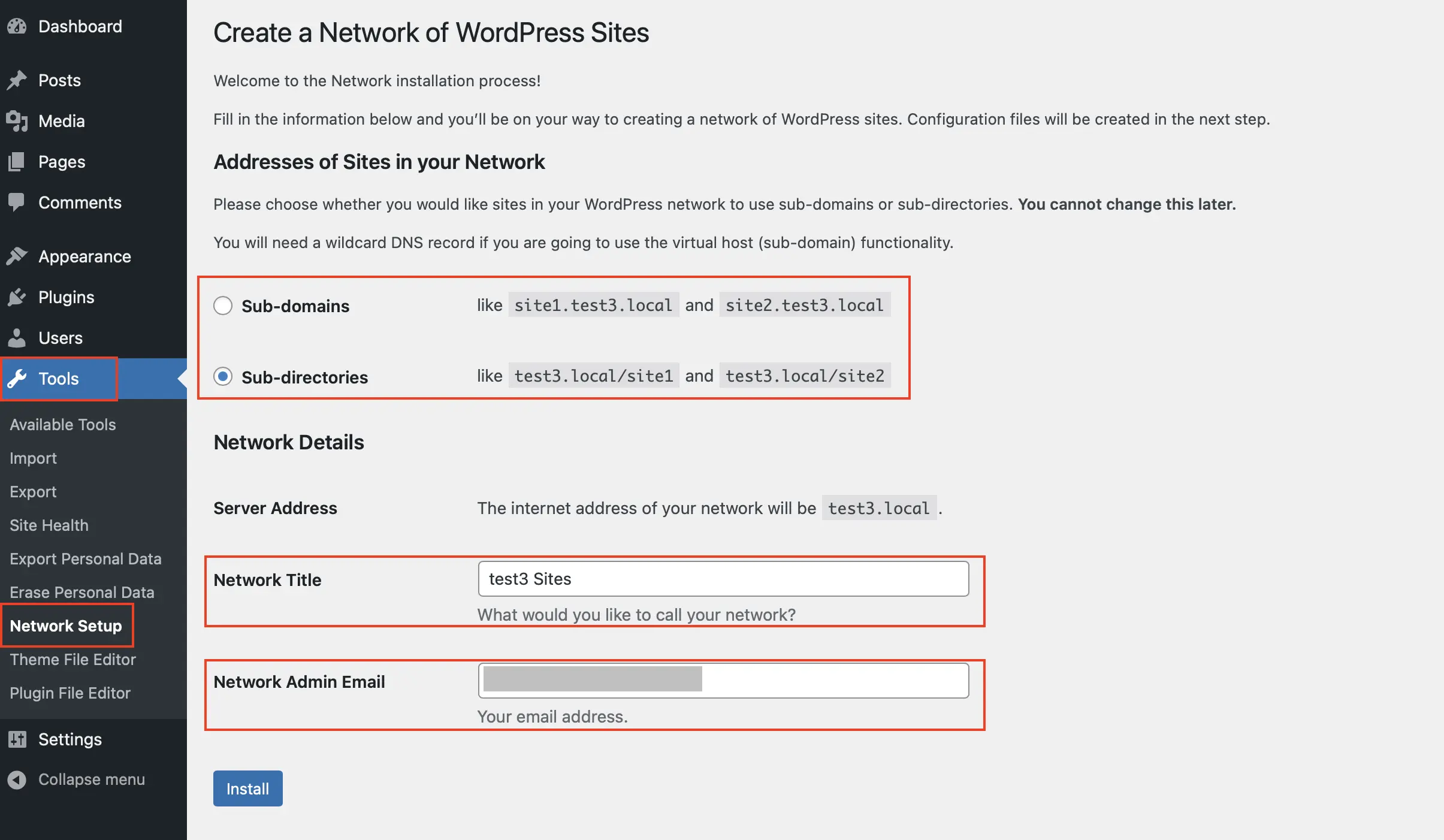
    4. Reload the admin and open Tools > Network Setup. Choose the structure you already decided on, check the network title and admin email, and submit.
    5. Paste the two generated blocks exactly as shown, into wp-config.php and .htaccess. Do not tidy them, do not adapt a version from a tutorial, and do not merge the .htaccess block with your old rules.
    6. Log out and log back in. Network Admin appears under My Sites only after a fresh login. “The install finished but there is no Network Admin” is almost always this.
    WordPress Network Setup screen during a multisite installation
    The WordPress Network Setup screen provides the crucial choice between sub-domains and sub-directories, dictating how your network sites will be structured. · Source: www.ionos.co.uk

    On a subdirectory network the generated constants look like this, with your own domain in place:

    define( 'MULTISITE', true );
    define( 'SUBDOMAIN_INSTALL', false );
    define( 'DOMAIN_CURRENT_SITE', 'example.com' );
    define( 'PATH_CURRENT_SITE', '/' );
    define( 'SITE_ID_CURRENT_SITE', 1 );
    define( 'BLOG_ID_CURRENT_SITE', 1 );

    A subdomain network gets the same constants with SUBDOMAIN_INSTALL set to true. DOMAIN_CURRENT_SITE has to match the primary site URL exactly, with no trailing slash and with www. present or absent exactly as the site runs. If you see COOKIE_DOMAIN suggested in a tutorial, leave it out unless you have a tested reason; copied cookie settings cause a lot of avoidable login trouble.

    The Apache block for a subdirectory network replaces the entire existing WordPress section of .htaccess:

    RewriteEngine On
    RewriteRule .* - [E=HTTP_AUTHORIZATION:%{HTTP:Authorization}]
    RewriteBase /
    RewriteRule ^index\.php$ - [L]
    RewriteRule ^([_0-9a-zA-Z-]+/)?wp-admin$ $1wp-admin/ [R=301,L]
    RewriteCond %{REQUEST_FILENAME} -f [OR]
    RewriteCond %{REQUEST_FILENAME} -d
    RewriteRule ^ - [L]
    RewriteRule ^([_0-9a-zA-Z-]+/)?(wp-(content|admin|includes).*) $2 [L]
    RewriteRule ^([_0-9a-zA-Z-]+/)?(.*\.php)$ $2 [L]
    RewriteRule . index.php [L]

    What a correct result looks like

    Before you create real sites, confirm all of this:

    • Network Admin is reachable from My Sites in the admin bar.
    • Settings > Permalinks saves without error on the main site.
    • A throwaway test subsite loads its own front page, not the main site’s, and its admin does not loop at login.
    • A media upload on that test subsite succeeds and lands in wp-content/uploads/sites/2/.
    • Reactivated plugins still behave on both the main site and the test subsite.
    Network Admin sites list in a WordPress multisite installation
    With the Network Admin Sites list now visible under My Sites, your WordPress Multisite network is successfully installed and ready for comprehensive management. · Source: easywebdesigntutorials.com

    If something looks off, do not re-run Network Setup repeatedly hoping for a different outcome. By then WordPress has written constants and database records; re-running on top of a partly configured install adds duplicates to untangle.

    If it did not work, check the layers in order

    The single most useful habit here is changing one layer at a time, from the outside in. Practitioners converge on the same order, for the same reason: each step’s result is then readable.

    1. DNS and host routing. Wildcard record present and propagated, server configured to answer wildcard hosts, mapped domains pointing at the right place.
    2. Server modules and permissions. mod_rewrite or the nginx equivalent, writable config files, PHP version and memory.
    3. The constants from Network Setup, SUBDOMAIN_INSTALL in particular.
    4. Rewrite rules, then Settings > Permalinks > Save Changes on each affected subsite to flush them.
    5. Plugins, deactivated network-wide and re-enabled one by one.
    6. The database, last.

    Two symptoms tell you which layer you are in without any guessing. If a broken subsite shows your host’s branded 404 page, the request never reached WordPress, so the problem is DNS or server routing. If it shows your theme’s 404 page, WordPress answered and the problem is rewrite rules or constants.

    The failures that account for most of it

    Every subsite 404s, the main site is fine. Rewrite rules. Usually someone merged the new network block into the old single-site rules instead of replacing the WordPress section outright. Re-copy the block from Tools > Network Setup, replace the whole section, flush permalinks.

    Subsites load the main site’s content, or core assets 404 with a subdirectory in the path like /site1/wp-includes/js/jquery.js. Constants. Check DOMAIN_CURRENT_SITE and PATH_CURRENT_SITE against the real primary URL, confirm SUBDOMAIN_INSTALL matches the structure the rewrite rules describe, delete any duplicate definitions, then flush permalinks.

    White screen or a 500 straight after saving wp-config.php. PHP syntax, almost always: a missing semicolon or smart quotes from a copy and paste. Nothing renders and the error is in the log, not on screen.

    Network Setup never appeared. The constant is below the stop-editing comment, inside a conditional, or the file never saved because the host would not write it.

    Subdomains do not resolve at all. Missing wildcard DNS, a server that is not configured for wildcard hosts, or a certificate that covers the apex domain and nothing else.

    Network problems are unusually good at pointing at the wrong cause, and the fix often sits in files you reach over SSH rather than in the dashboard. If you would rather hand that over, SiteSelf fixes WordPress errors on request: you describe the symptom in chat, the agent works on the live site, and it reports what it changed and what it checked.

    Plugins, themes and code in a network

    In Multisite, only the Network Administrator installs plugins and themes. A beginner on r/WordPress who selected Multisite during setup by mistake reported the giveaway clearly: there was no Add Plugin button on the site they were working in. They removed the network and reinstalled.

    Installation and activation are separate. A plugin is installed once at network level, then either network-activated across every site or made available for per-site activation. Those are different states, and several plugins built for networks, including WP Multi Network by John James Jacoby, which turns one Multisite installation into several networks, only work correctly when they are network-activated. Activating them per site produces partial behaviour that is hard to read.

    Network Activate link on the Network Admin plugins screen in WordPress multisite
    The Network Admin plugins screen shows distinct ‘Network Activate’ and ‘Network Deactivate’ links, illustrating the unique management states for plugins across a multisite installation. · Source: codex.wordpress.org

    Keep network activation for things every site genuinely needs. Themes work the same way: Network Admin decides what is available, each subsite picks from that list, and the shared stack is the point. Note that the Theme File Editor is restricted in a network by default, which changes how you edit theme files safely.

    If you write custom code for the network, two habits save later pain. Guard multisite-only calls such as switch_to_blog() with is_multisite() so the code does not fatal if it ever runs on a single site. And use home_url() or site_url() in templates rather than hard-coded domains, so mapped domains and per-site URLs resolve correctly.

    Three things people expect to be built in and are not: cross-subsite user access (adding a user to the network does not give them access to every site), search across all sites in the network, and pulling one subsite out into its own install. All three need plugins or custom work.

    Moving a network later

    A Multisite moves as one piece. Site-by-site migration is where these projects die, because shared user tables, per-site media directories, network-level plugins and domain values stored in both the database and the config files all have to land together. When you fix URLs after a move, WP-CLI’s wp search-replace searches through all rows in a selection of tables and replaces the first string with the second. Run it with the network flag so it covers every subsite, and skip the guid column, because rewriting GUIDs causes more trouble than it solves. If tables come out corrupted, wp db repair first, restore from backup if errors persist, and check wp_blogs and wp_site for duplicate entries.

    Frequently asked questions

    Can I switch from subdirectories to subdomains later?

    Not by editing constants. Flipping SUBDOMAIN_INSTALL and the rewrite rules on a live network breaks URLs, routing and internal links. Treat it as a planned migration with search-replace and redirects, and decide the structure deliberately before launch instead.

    Do users automatically get access to every site in the network?

    No. Super Admins see everything; a normal user added to the network still needs a role on each site they should reach. Granting broader access across subsites generally takes a role and capability plugin or custom logic, which catches people out when they assume shared users means shared access.

    Can I run several WooCommerce stores on one network?

    Yes. Each subsite gets its own storefront, products and orders while sharing one codebase and one update cycle. The caveats are host support for Multisite and domain mapping, extensions that are network-aware, and resource use, since checkout traffic on one store shares the server with every other site.

    Can I undo Multisite or pull one site out?

    A network can be reverted to a single site, and extracting one subsite into its own install is possible: export the content, migrate the relevant tables, fix URLs. Neither is quick, and both are easier if you planned the exit before you built the network.

    Does Multisite use more memory because I have thirty idle sites?

    Idle subsites do not each consume the memory of a standalone install. It is one codebase, and a request loads one site. What does cost you is network-activated plugins running everywhere and a database that carries per-site tables for every subsite you create.

    Is Multisite slower than separate installs?

    It depends on the stack more than on Multisite. With persistent object caching, page caching and a plugin set chosen with care, the difference is small. Dozens of subsites with heavy plugin stacks on an underpowered server is a different story, and that is where most complaints come from.

  • How to list your WordPress plugins with wp plugin list

    Key takeaways

    • The command is wp plugin list. There is no wp list plugin alias, and the transposed form returns a usage error rather than a list.
    • wp plugin list –field=name –format=csv gives you an audit spreadsheet without installing anything on the site.
    • “This does not seem to be a WordPress installation” means you are in the wrong directory. Pass –path with your own document root, never the example path from a tutorial.
    • –update=available is only as accurate as the site’s outbound connection to the WordPress update API. A blocking firewall makes a stale site look patched.
    • Run WP-CLI as the user that owns the files, not root, because sibling commands like wp plugin update rewrite file ownership.

    WP-CLI names the object first and the action second. The command is wp plugin list. Type wp list plugin into a terminal and you get a usage error, not a list, and that single transposition explains a good share of the searches for the phrase.

    The other group of people typing it want something else entirely: a list of posts, categories, headings or products rendered on a page. That is a front-end job with its own set of tools, covered in what a wp list plugin is and how to pick one. This page is about the terminal command and the inventory it produces.

    What wp plugin list prints, and what it needs to run

    WP-CLI’s reference page for wp plugin list says it displays the plugins installed on the site along with activation status and whether an update is available. In practice that is four columns: name (the plugin folder slug, not the pretty title), status, update, and version.

    Two things have to be true before it works. WP-CLI has to be installed on the server, and you need SSH access with a shell user that can read wp-content/plugins. Shared hosting without SSH rules this out; skip to the admin-screen method further down.

    cd /var/www/example.com/htdocs
    wp plugin list

    Output looks like this:

    +--------------------+----------+-----------+---------+
    | name               | status   | update    | version |
    +--------------------+----------+-----------+---------+
    | akismet            | active   | none      | 5.3.3   |
    | classic-editor     | inactive | none      | 1.6.5   |
    | contact-form-7     | active   | available | 5.9.8   |
    +--------------------+----------+-----------+---------+

    The status column is the one people misread. inactive means installed but switched off, and an inactive plugin still has its PHP files sitting on disk where a known vulnerability can be reached in some configurations. Inactive is not removed.

    Terminal output of the wp plugin list command showing plugin name, status, update and version columns
    The WP-CLI `wp plugin list` command efficiently displays essential plugin details like name, status, update availability, and version in a clear tabular format. · Source: www.wpexplorer.com

    The flags that turn output into an audit

    The bare command is a glance. The flags are what make it useful on a Monday morning when someone asks which of forty sites is running the plugin that just got a CVE.

    • --status=active or --status=inactive narrows the list to one state.
    • --update=available shows only plugins with a pending update.
    • --field=name returns a single column, one value per line, ready to pipe.
    • --fields=name,version,status picks the columns you want, in order.
    • --format=csv or --format=json changes the output shape for spreadsheets and scripts.
    • --path=/var/www/example.com/htdocs tells WP-CLI where WordPress lives if you cannot change directory first.
    • --url=example.com targets one site in a multisite network.

    The combination worth memorising is the CSV export:

    wp plugin list --field=name --format=csv > plugins.csv
    wp plugin list --fields=name,version,status --format=csv > inventory.csv

    That is the whole answer to “how do I get a spreadsheet of every plugin on this site”. You do not need to install a plugin to list your plugins. Adding a single-purpose utility to export something the command line already prints adds code, an update obligation and one more thing that can go unmaintained.

    For a network, loop the sites and tag each row with its URL so the rows stay distinguishable after you merge them:

    for site in $(wp site list --field=url); do
      echo "$site"
      wp plugin list --url="$site" --fields=name,status,version --format=csv
    done

    What each error message actually means

    “Error: This does not seem to be a WordPress installation”

    You are not in the WordPress root. Either cd into the directory that holds wp-config.php and wp-content, or pass --path.

    The version of this that bites hardest is pasting the example path from a tutorial. --path=/var/www/html/wordpress exists on a lot of demo servers and almost no real ones. If it happens to match a stale copy or a staging clone, the command runs, prints a clean list, and you walk away from a security audit with a false all-clear. Confirm the path with pwd or your host’s document root setting before you trust the output.

    “wp: command not found”

    WP-CLI is not installed, or the wp Phar is not in your $PATH. Managed hosts usually document their own install path or alias; some require you to call a versioned binary such as wp-cli or a PHP-specific wrapper. Check the host’s SSH documentation before installing your own copy into a home directory.

    Permission errors, and the root habit that causes them later

    The shell user needs read access to wp-content/plugins. Run as the user that owns the WordPress files:

    sudo -u www-data wp plugin list

    wp plugin list is read-only, so root does no damage here. The problem is the muscle memory. The same session usually continues into wp plugin update, which writes files as whoever ran it, and now PHP-FPM owns nothing and updates from the dashboard start failing with permission errors nobody connects to last week’s terminal session.

    Plugins that look missing on multisite

    Network-activated plugins and per-site-activated plugins are different states. Run the command against one site with --url=example.com and you see that site’s picture, which is not the network’s picture. Administrators regularly conclude a plugin has vanished when they are simply asking the wrong context. Decide which scope you want before you read the list, and label the export accordingly.

    An update list that is short but wrong

    This is the failure worth being paranoid about. --update=available depends on WordPress being able to reach the WordPress.org update API. If a host firewall, a security plugin or an outbound proxy blocks that request, the command returns a short list of updates and everything else looks current. Nothing errors. The site reads as patched.

    Cross-check when the result looks suspiciously clean: open Dashboard then Updates in wp-admin, or compare against the version numbers on the plugins’ own WordPress.org pages. A network of sites that all report zero pending updates on the same day is a connectivity story, not a maintenance achievement.

    A list is not an audit until you act on it

    Producing the inventory is step one. The failure that managed hosts keep writing about is owners who run the list, see an unpatched or closed plugin, and leave it active. The sequence that finishes the job:

    1. wp plugin list --update=available to see what has a fix waiting.
    2. Update what is patched. wp plugin update --all for bulk, on staging first if the site earns money.
    3. Check anything with no update against its WordPress.org page. A plugin whose listing has been closed will not get a patch.
    4. Deactivate and then delete what cannot be fixed. wp plugin deactivate slug followed by wp plugin delete slug removes the files rather than parking them.
    5. Re-run the list and keep the CSV. That file is your evidence of what the site looked like on that date.

    Step four is where people stall, because deleting a plugin means replacing whatever it did. Budget for that rather than postponing it, and if a broken plugin is the reason you are running the audit in the first place, work through fixing WordPress plugins that are not working before you start deleting things.

    If the running and the reading and the replacing is the part that never gets scheduled, SiteSelf handles WordPress plugin updates and removals through chat: you describe the audit you want, the agent does the work on the site with the access you have given it, and reports what changed and what it checked.

    Listing your plugins without SSH

    The Plugins screen in wp-admin carries the same information with a worse export story. The filter links above the table split the list into All, Active, Inactive, Update available and, when relevant, Recently Active and Drop-in. Set the screen to show all plugins per page from Screen Options, then copy the table into a spreadsheet by hand.

    WordPress Plugins screen in wp-admin showing the installed plugins table and status filter links
    The WordPress Plugins screen offers convenient filters like All, Active, Inactive, and Update Available to quickly inventory your installed plugins directly from the admin dashboard. · Source: wordpress.org

    FTP or the host’s file manager is the last resort. Browsing wp-content/plugins shows you folder names and nothing else: no versions, no activation status, no update state. It answers “what is installed” and none of the questions that matter for security.

    If you wanted a list on the page, not in the terminal

    Half the traffic to this phrase wants output a visitor can see. The command has nothing to do with that. Name the list type first, because it decides the tool:

    • Headings in a long article. A table of contents plugin builds the list from the content. Easy Table of Contents, in the WordPress.org directory, generates one automatically from the headings in posts, pages and custom post types.
    • Posts from a category. List Category Posts lists posts by category in a post or page using the [catlist] shortcode, with options such as [catlist name="news"].
    • A queried list inside a block theme. Try the core Query Loop block before installing anything. It covers most recent-posts and category-feed layouts.
    • Tabular data you maintain by hand. A table plugin, not a post-query plugin. Asking a query tool to behave like a spreadsheet ends badly.
    • Your installed plugins shown publicly. Possible with a shortcode plugin, and rarely a good idea. A published list of your plugins and versions is a map for anyone scanning for known vulnerabilities.

    When one of these goes wrong, the cause is almost always setup rather than code. A shortcode rendering as literal [catlist] text on the page means the plugin is not activated, the shortcode has a typo, or it sits in a context that does not run shortcodes. A blank list usually means the plugin has nothing to list yet because its items or categories were never created.

    Frequently asked questions

    Is wp plugin list safe to run on a live site?

    Yes. It reads plugin data and prints it; it changes nothing. The caution belongs to the commands people run next, such as wp plugin update --all, which should go through staging and a backup on any site where downtime costs money.

    How do I see only the plugins that need updating?

    wp plugin list --update=available. Pair it with --fields=name,version for a tidy report. Treat an empty result with suspicion if the site has not been updated in months, since blocked outbound requests to the update API produce the same empty result.

    Can I get JSON instead of a table?

    Yes, --format=json. It is the format to use when the list feeds something else, such as a script that compares staging against production and exits non-zero when versions drift.

    Why does the name column not match the plugin’s title?

    The name column is the plugin slug, which is the folder name under wp-content/plugins. That is what every other wp plugin subcommand expects as an argument, so it is the useful identifier even when it reads nothing like the name on the Plugins screen.

    Does a small number of active installs mean a plugin is risky?

    Not by itself, but it is a weak maintenance signal. A utility plugin with a handful of installs has fewer people reporting bugs and less reason for the author to keep shipping releases. Check the last-updated date and the support forum before you build anything on it, and prefer a core feature or a command over a plugin when both do the job.

  • How to edit the footer in WordPress safely

    Key takeaways

    • Open the Appearance menu first: an Editor item means a block theme and a Footer template part, while Customize and Widgets point at a classic theme’s footer panels and widget areas.
    • On block themes the footer sits under Patterns or Template Parts depending on the theme, so check both before concluding it is missing.
    • If no dashboard screen changes the text, it is hard-coded in footer.php or printed by a theme credit hook, and the update-safe fix is a child theme copy, not an edit to the parent.
    • Leave <?php wp_footer(); ?> in place immediately before </body>. Delete it and analytics, pixels and plugin scripts stop printing while the page still looks fine.
    • Tracking code belongs in a header and footer snippet plugin such as WPCode, so it survives theme updates and theme switches.

    Most footer edits are one line of text: a stale copyright year, a missing privacy link, a phone number that changed. The edit takes ten seconds once you are in the right screen. Getting to the right screen is the whole job, because WordPress has four systems that can each own the bottom of the page.

    A block theme keeps the footer as a template part in the Site Editor. A classic theme keeps it in Customizer panels, widget areas, or baked into footer.php. A page builder may hold its own footer template. Editing the wrong one is why people say the site “did not save” when it saved perfectly, just somewhere that does not render. The same routing problem shows up whenever you edit themes in WordPress, and the fix is the same: diagnose the layer, then edit.

    How to tell which layer owns your footer

    Log in and look at the Appearance menu. That one menu answers the question in a few seconds.

    • Appearance has an Editor item: a block theme is active. The footer is a template part inside the Site Editor. WordPress.org’s documentation says the Site Editor is only available when a block theme is installed and active, so its presence is a reliable signal.
    • Appearance has Customize and Widgets but no Editor: a classic theme is active. The footer lives in a theme panel in the Customizer, in footer widget areas, or in the theme’s own options screen.
    • A page builder runs the site’s templates: check the builder’s own template or theme-builder area too. Builders sometimes take over the footer and sometimes leave it with the theme, and which one is true decides where you edit.
    • None of those screens contain the text you can see on the front end: the footer is hard-coded in a theme file or printed by a theme credit hook. Skip to the child theme section below.
    WordPress Appearance menu showing the Editor item used to identify a block theme
    The WordPress Appearance menu provides direct access to tools like Customize and Theme File Editor, essential for determining footer ownership. · Source: www.wpzoom.com

    One more check before you start. Look at what you are about to edit and ask whether it is global. A footer template part changes every template that includes it. A widget in Footer 1 changes every page with that sidebar. A block you added to the bottom of a single page template changes that view only. Almost every “it only changed on one page” report is that last case.

    Block themes: edit the Footer template part, not the bottom of a template

    Go to Appearance, then Editor. From there, themes differ in where they file the footer, which is the single most common reason people decide it is missing:

    1. Try Patterns, then look for a Footer entry, often grouped under a heading such as Template Parts or All template parts.
    2. If your version shows Template Parts as its own item, look there instead.
    3. Failing both, open Templates, pick any template such as Index or Single, scroll to the bottom of the canvas and click into the footer area. The block toolbar will name it as a template part, and the three-dot menu gives you an edit option that takes you into the part itself.
    4. From the front end, the admin bar’s Edit Site link drops you into the same editor. Scroll to the footer, hover, and click the edit control that appears.

    Inside the part, edit blocks as you would anywhere else: paragraph text for the copyright line, a Navigation block for footer menus, Social Icons, Site Logo, columns for a multi-column layout. Then save. The save dialog lists what is being written, and for a footer edit it should name the Footer template part. If it lists a template such as Single or Page instead, you edited the template, not the part, and the change will not follow you across the site.

    Spacing and padding are block settings, not footer settings

    There is no “footer padding” control, which sends people hunting for a setting that does not exist. Select the Group block that wraps the footer content, open block settings, and set Styles, then Dimensions, then Padding. Check the mobile preview before saving, because a footer that looks balanced at desktop width often collapses badly at 375 pixels. If the footer is built from nested Columns inside Columns, flattening it to one Group with a few child blocks makes the spacing predictable and easier to debug later.

    Classic themes: the Customizer panel, widget areas, or neither

    Open Appearance, then Customize, and look for a panel with any of these names: Footer, Footer Bar, Bottom Bar, Footer Builder, Site Identity, Theme Options, Site Info or Copyright Text. Theme authors name the same thing a dozen ways. Inside, you are usually looking for a field called Footer Text, Copyright Text or Footer Credits.

    Two things trip people here. First, Customizer changes stay in preview until you click Publish. A change that looks applied in the preview pane and absent on the live site is usually just unpublished. Second, some themes accept shortcodes in that field, commonly [current_year] and [site_title], which means the year updates itself every January instead of going stale.

    For widget-based footers, go to Appearance, then Widgets, and look for areas named Footer, Footer 1, Footer 2, Footer Column or Footer Bottom. Edit the Text or Custom HTML widget that holds your content, or add a Navigation Menu widget for legal links. If the footer area lists no widgets and offers nowhere to add them, the theme does not support footer widgets, and more hunting will not produce one. That is the moment to switch strategy rather than keep clicking.

    If there are several text widgets in the same footer area, make sure you have the right one. Widget IDs such as text-4 and text-5 look identical in the list. Change a word in one, watch the preview, and you will know which instance renders where.

    WordPress Widgets screen showing footer widget areas on a classic theme
    Classic themes often expose footer columns as widget areas, allowing users to easily add and configure content like a Products list directly within the WordPress Customizer. · Source: kinsta.com

    When no screen in the dashboard changes the footer text

    Then it is in the theme’s code. Classic themes keep the closing markup in footer.php, which WordPress’s theme handbook treats as a template partial that other template files pull in. Some themes print credits through an action hook of their own, along the lines of do_action( 'theme_name_credits' ), so the text is not in the file you are reading either.

    Editing the parent theme’s footer.php works right up until the next theme update overwrites it. Use a child theme instead. WordPress’s handbook describes child themes as a way to modify an existing theme without editing that theme’s code, and a copied footer.php in the child folder takes priority over the parent’s.

    1. Take a backup, or make sure your host’s restore point is recent, before you open any PHP file.
    2. Create or activate the child theme.
    3. Copy footer.php from the parent theme folder into the child theme folder, keeping the same filename.
    4. Edit only the human-readable text and HTML. Leave PHP functions, tags and structure as they are.
    5. Upload, then reload the front end.

    The one line you must not remove is the footer hook. WordPress’s function reference describes wp_footer() as firing the action that prints scripts and data before the closing body tag, and plugins rely on it:

    <footer id="site-footer">
        <p>&copy; <?php echo esc_html( date( 'Y' ) ); ?> <?php bloginfo( 'name' ); ?></p>
    </footer>
    <?php wp_footer(); ?>
    </body>

    Delete or relocate that call and the page still renders, which is what makes it nasty. What stops is analytics, tracking pixels, chat widgets and any script a plugin enqueues in the footer. People then spend an afternoon debugging the plugin that is working fine.

    Two failure signatures tell you a PHP edit went wrong: a blank white page, or “There has been a critical error on this website.” With debugging on or in the server error log you will see something like Parse error: syntax error, unexpected ... in wp-content/themes/your-theme/footer.php on line 42. The line number is the fastest route back. Restore your backup, or re-upload the original footer.php from a fresh download of the theme, then redo the change in the child theme.

    If a theme’s footer links are wrapped in eval( base64_decode( '...' ) ), stop. That is a theme hiding its own links from you, and it is a reason to question where the theme came from rather than a puzzle to solve.

    Adding tracking code to the footer without touching the theme

    Scripts are a different job from footer design, and they should not go in footer.php at all. A header and footer snippet plugin stores the code outside the theme, so it survives theme updates and theme switches. WPCode’s listing in the WordPress.org plugin directory describes exactly this: inserting header and footer scripts, pixel code and custom snippets. Install it, open Code Snippets, then Header & Footer, paste into the Footer box, and save.

    Two caveats. The footer box still depends on wp_footer() existing in the theme, so a theme with a mangled footer file makes the plugin look broken. And a heavy third-party script in the footer is still a heavy script: test the page after adding it rather than assuming footer placement makes it free.

    WooCommerce stores have two footers

    On a store, “the footer” is ambiguous. The storefront footer is a theme object and follows the rules above: Customizer panels on a classic theme such as Storefront, the Footer template part on a block theme, and Appearance, then Menus, to assign a dedicated footer menu for terms and privacy links. Some block-and-classic hybrid themes ship both a block footer and a classic footer, and only the active mode shows your edit, which is worth checking before you assume nothing saved.

    The email footer is a separate system entirely. WooCommerce’s settings documentation lists an Emails tab under WooCommerce, then Settings, and the footer text used in customer emails is edited there under the email template options, with placeholders such as {site_title} and {site_url}. For structural changes, copy wp-content/plugins/woocommerce/templates/emails/email-footer.php into wp-content/themes/your-child-theme/woocommerce/emails/email-footer.php and edit the copy. Editing the file inside the plugin folder works until the next WooCommerce update replaces it.

    Check the edit before you call it done

    A footer change touches every page, so verify it like one:

    • Load the home page, one blog post and one other page type. A correct template part edit appears on all of them.
    • Clear the site and host cache, then reload in a private window. Managed hosting caches routinely make a saved change look like a failed one, and re-editing on top of a stale page makes the mess worse.
    • Check the mobile width. Footers break there first.
    • Click the links you touched, including the legal ones.
    • Confirm the footer is still a real <footer> element if you rewrote the markup. Replacing it with a plain <div> removes the landmark that screen reader users rely on to jump there.

    Know the way back before you need it. Site Editor template parts have revisions in the sidebar. Widget content can be pasted back from a copy you kept. File edits come back from the backup you took in step one, which is the step people skip.

    When to stop and get help

    Stop if the footer text is not in any dashboard screen and you are not comfortable working in theme files, if the site is already showing a critical error, or if the credits are obfuscated. Stop also if the request is “change this one line” and the answer keeps turning into FTP access and a child theme, because the cost of the workaround has overtaken the cost of the change. Design changes on an existing WordPress site are the kind of work SiteSelf does through chat, using the connector plugin for content and settings and hosting access for anything in theme files, though pages owned by a visual page builder are refused with the reason.

    Frequently asked questions

    I changed the footer text in the dashboard and the site looks the same. Why?

    Four usual causes. You did not click Publish in the Customizer. You edited a template instead of the Footer template part. Your host’s cache is still serving the old page. Or the theme supports both a block footer and a classic footer and you edited the inactive one.

    How do I remove “Proudly powered by WordPress” from the footer?

    Work through it in order: a footer text or site info field in the Customizer, a theme-specific credit setting, a credit-removal plugin built for your theme, and only then a child theme copy of footer.php. If the theme exposes a credit hook, hook into it and output your own markup instead of deleting the hook call, which can take other output with it.

    Will my footer changes survive a theme update?

    Customizer and theme option values survive updates, though a theme switch loses theme-specific options. Child theme file overrides survive. Parent theme footer.php edits do not. Code stored in a snippet plugin survives both updates and theme switches, which is why tracking code belongs there.

    How do I make the copyright year update itself?

    In a theme footer field, try the theme’s shortcode, commonly [current_year]. In a child theme file, use <?php echo esc_html( date( 'Y' ) ); ?>. In a block theme, a small plugin that provides a dynamic year block drops into the Footer template part without any file editing.

    I edited the dashboard footer text and the public site did not change.

    Those are different systems. The admin_footer_text and update_footer filters change what appears at the bottom of wp-admin only. The public footer comes from the theme’s template part or footer.php.

    Should I disable the Theme File Editor?

    On any site where non-developers have admin accounts, yes. Adding define( 'DISALLOW_FILE_EDIT', true ); to wp-config.php removes the in-dashboard file editor, so footer PHP work has to go through FTP or your host’s file manager, where a backup is part of the routine.

  • How to fix WordPress plugins that are not working

    Key takeaways

    • Check Plugins → Installed Plugins first. WordPress pauses a plugin that throws a fatal error and says so on that screen, which names the culprit before you start testing.
    • Clear every cache layer, not just the browser: the caching plugin, the host cache and the CDN, and switch off minification, deferred JS and critical CSS while you debug.
    • Locked out of wp-admin? Rename wp-content/plugins over SFTP or the host file manager to force everything off. WordPress.org documents this. Getting access back is step one, not the fix.
    • Do not delete the plugin before you diagnose it. You lose its settings and the clean rollback path; WP Rollback restores a previous version from WordPress.org instead.
    • A plugin that is active and doing nothing is often a template problem, not a plugin bug. Check the plugin’s output has somewhere to render before you go deeper.

    A plugin that stopped working rarely stopped on its own. Something changed first: the plugin updated, WordPress core updated, the host moved you to a newer PHP version, someone added a caching rule, someone pasted a snippet into a theme file. The plugin is where the failure shows up. It is often not where the failure started.

    That is why the first move is not deactivation. It is a two-minute pass to record what changed and what exactly is broken. If the break started right after an edit to functions.php, for example, the edit is your prime suspect, and there are safer ways to make theme changes that survive the next update. If it started right after a Tuesday morning update run, you already have a short list.

    Write down what changed before you touch anything

    Four things, in a note, before you start clicking:

    • The last change on the site: plugin update, core update, theme switch, PHP version change, new caching or security rule.
    • The exact failing surface: which page, which action, front end or admin, logged in or logged out, checkout or contact form.
    • Whether it fails in a private window too. If it works there, you are looking at a cache or a logged-in-only difference, not a broken plugin.
    • Whether WordPress has already told you. Open Plugins → Installed Plugins and look for a plugin marked as paused with a notice that it was deactivated because of a fatal error. That notice names the file that crashed. People miss it constantly.

    Then read the logs rather than guessing. WordPress’s debugging handbook documents WP_DEBUG, WP_DEBUG_LOG and WP_DEBUG_DISPLAY in wp-config.php. On a live site, turn logging on and display off, then read wp-content/debug.log and the server error log. A PHP failure leaves a file path pointing at the plugin or theme that caused it. A cache problem leaves no error at all, which is itself a clue.

    The causes, roughly in the order they happen

    A conflict introduced by an update

    This is the most common one, and the trigger is usually an update that ran in the last day or two. Two plugins touch the same hook, one ships a new script that collides with another, or a plugin and the theme both try to control the same template. WooCommerce’s own self-service guide names the same three suspects for store problems: outdated software on the site, a conflict with the theme, and a conflict with another plugin.

    Repeat offenders in practitioner reports are the big ones, because they are the ones doing the most work: WooCommerce on major versions that run database migrations, and Elementor plus its add-on packs, where an add-on lags a version behind the builder.

    A cache serving the old version

    The most under-diagnosed layer by a distance. You fix the problem, the page still looks broken, so you assume the fix failed and change something else. Clear the caching plugin, the host cache and the CDN, in that order, then retest in a private window. While you are debugging, switch off minification, deferred JavaScript, critical CSS and Cloudflare Rocket Loader. Combining and deferring scripts is exactly the sort of thing that hides a plugin’s JavaScript from logged-out visitors while it works fine for you.

    The signature to recognise: it works when you are logged in and fails when you are not. That is almost always stale cached output, not a plugin bug.

    The plugin works, the template has nowhere to put it

    A plugin can be installed, active, licensed and running correctly while showing nothing on the page, because the theme template does not include the area or hook it renders into. This comes up constantly in WooCommerce and page-builder setups, where a custom product template replaced the standard one and dropped the hook the plugin attaches to.

    Before you start a conflict test, ask the cheap question: does this plugin’s output have anywhere to appear? Switching to a default theme for thirty seconds answers it.

    PHP version, memory, or a snippet with a typo

    Three different problems that produce similar-looking breakage. Plugin code that does not run on the site’s PHP version. Memory exhaustion on a small hosting plan carrying WooCommerce plus a page builder plus a security scanner. Or a snippet copied off a blog into functions.php with a missing semicolon.

    The errors are distinctive enough to sort quickly:

    • Parse error: syntax error, unexpected ... points at a code edit, usually the most recent one.
    • Fatal error: Allowed memory size of X bytes exhausted is a resource limit, not a bug.
    • Fatal error: Uncaught Error: Call to undefined function ... or Class '...' not found usually means a version mismatch or a half-installed plugin.

    An update that stopped halfway

    An auto-update that timed out leaves a plugin with a mix of old and new files. Symptoms include a site stuck on “Briefly unavailable for scheduled maintenance”, or database errors such as Table 'wp_xxx' doesn't exist and Unknown column ... in 'field list' after a plugin that migrates its own tables was interrupted mid-migration.

    For the maintenance message, WordPress.org’s troubleshooting FAQ covers the fix: delete the .maintenance file in the site root. For a half-finished migration, restore the pre-update database backup. Re-running the update on a half-migrated database tends to make it worse.

    The isolation test, run so the answer means something

    Everyone knows the method. Most people run it in a way that cannot produce a reliable answer. The rule is one change, one test, on the exact surface that failed.

    1. Take a backup. The test is only aggressive enough to be useful if you can undo it.
    2. Deactivate all plugins. Test the failing action, not the homepage. If it still fails, plugins are not your cause and you can move to the theme.
    3. Reactivate one plugin. Clear the cache. Test again. Repeat, one at a time. Reactivating in batches to save time destroys the only thing the test produces.
    4. If plugins come back clean, switch to a default theme such as Twenty Twenty-Five and retest. Users blame plugins for theme faults more often than the reverse.
    5. Open the browser console on the failing page and look for TypeError: ... is not a function or ReferenceError: ... is not defined. A JavaScript error names the file that failed to load.

    On a live site you do not want to take the public offline while you do this. The Health Check & Troubleshooting plugin, published by WordPress.org, adds a troubleshooting mode that disables plugins for your session only, so visitors keep seeing the normal site. One honest caveat: its directory listing currently carries a notice that it has not been tested with the last three major WordPress releases, so read that before installing it on a store.

    WordPress troubleshooting mode screen used to isolate a plugin conflict
    The ‘Troubleshoot’ option next to each plugin allows you to isolate conflicts for your session without affecting live site visitors. · Source: make.wordpress.org

    Two more cheap checks that solve a surprising share of cases. Resave Settings → Permalinks, which flushes rewrite rules and fixes plugin endpoints returning 404 or 500 after an update. And for any premium or connected plugin, confirm the licence is valid and the site can reach the vendor’s servers, because a plugin that cannot phone home fails silently and looks like a conflict.

    Getting back in when wp-admin is gone

    If a fatal error has taken the dashboard with it, stop trying to log in. Recovery happens at the file level, through SFTP, SSH or the host’s file manager.

    Rename the folder of the plugin you suspect, from plugin-name to plugin-name.off. WordPress cannot load it, so it deactivates, and the settings in the database stay intact. If you do not know which one, rename the whole wp-content/plugins directory to plugins.deactivate to force everything off. WordPress.org’s troubleshooting FAQ documents this as the way to deactivate all plugins without admin access. Once you are back in, rename the folder back and reactivate one at a time.

    SFTP file manager showing the wp-content plugins folder for renaming
    An SFTP client provides direct access to the wp-content/plugins directory, where renaming the folder can quickly restore access to a locked-out wp-admin. · Source: kinsta.com

    Being able to log in again is a milestone, not a finished job. The site is now running without the plugins it needs, and the thing that caused the crash is still there. Do the isolation pass before you call it fixed, and retest the exact admin screen or checkout step that broke rather than the homepage.

    Update, roll back, replace, or remove

    Once you know which plugin is at fault, the next step is a judgment call, not more testing.

    What you are looking atThe usual answer
    Maintained plugin, a newer version fixes the reported bugUpdate, on staging first if you have one
    Broke the moment it updated, previous version was stableRoll back and wait for the vendor patch
    Files look corrupt or an update was interruptedReinstall the same version so the files match
    Not updated in years, not tested with recent WordPress, fails on PHP 8Replace it with something maintained
    Known vulnerability, no patch, feature is business-criticalRemove it and solve the need another way

    Rollback is a normal first response, not a last resort. WP Rollback, by Devin Walker, restores any plugin or theme from the WordPress.org directory to a previous version through the familiar updater flow, so you do not have to hunt for an old zip. It only works if you did not delete the plugin, which is the argument for diagnosing before deleting.

    On the “replace it” line, check the plugin’s directory page for the last-updated date and the “tested up to” version before you reinstall hope. Patchstack publishes an annual State of WordPress Security whitepaper analysing the previous year’s vulnerability data, and the pattern it tracks is a plugin ecosystem problem more than a core one. An abandoned plugin is a maintenance decision, not a bug report.

    The fixes that make it worse

    • Reactivating in batches. Saves five minutes, costs you the answer.
    • Deleting the plugin before diagnosing. You lose its configuration and the clean rollback.
    • Setting permissions to 777. It is a security risk, many hardened hosts refuse it anyway, and it rarely was the problem. WordPress’s hardening handbook has a file permissions section worth reading instead.
    • Leaving WP_DEBUG_DISPLAY on in production. It prints file paths and stack traces to visitors.
    • Downgrading PHP permanently. It hides the incompatibility and drops you off security support. Use it as a bridge for a day, not a policy.
    • Editing plugin or parent-theme files in place. The next update overwrites your fix and the bug comes back with no record of why.

    When to stop and hand it over

    Three signals that the cheap path has run out: the conflict reappears after a clean isolation pass, the failure involves custom code or a bespoke integration, or the breakage is in the database rather than the files. At that point you are choosing between a long evening and someone with server access.

    That is the shape of work SiteSelf handles: you describe the symptom through chat, the agent reads the logs on the connected site, runs the isolation, applies the fix, then fetches the page and reports what it changed and what it checked. Content and settings work needs the SiteSelf Connector plugin; reading logs, renaming folders and rolling back files needs hosting access over SSH. More on handing WordPress troubleshooting to an agent, including what it refuses, such as pages owned by a visual page builder.

    Frequently asked questions

    Why does the plugin work for me but not for logged-out visitors?

    Almost always cached output. Logged-in users usually bypass page cache, so you see the current version while visitors get the stored one. Clear the caching plugin, the host cache and the CDN, then test in a private window with minification and deferred JavaScript switched off.

    Should I deactivate plugins first or switch the theme first?

    Plugins first, because conflicts between plugins are the more frequent cause and the test is faster. But always run the default theme test before you conclude a plugin is guilty. A theme that overrides a template or throws an error in functions.php produces symptoms that look identical to a plugin bug.

    Do I need to delete and reinstall the plugin?

    Reinstalling the same version helps when the files are corrupt or an update was interrupted, and it keeps your settings because those live in the database. Deleting is different: it can remove configuration and it takes away the clean rollback. Diagnose first, delete last.

    Why does it work on staging but not on live?

    Look at what differs between the two environments rather than at the plugin. The usual differences are cache and CDN layers that only exist on live, a different PHP version, plugin or theme versions that drifted apart, a premium licence tied to the live domain, and firewall or IP rules that block outbound calls from one environment.

    Is raising the PHP memory limit a real fix?

    Sometimes. A one-off increase is reasonable when a heavy task such as an import or a security scan exhausts memory. Repeated exhaustion during ordinary page loads means the plugin stack is too heavy for the plan, and raising the number again just moves the failure. Reduce the stack or move to hosting sized for it.

    What details should I give the plugin developer?

    WordPress version, PHP version, the plugin version, the active theme, the full list of active plugins, the exact steps that reproduce the failure, and the relevant lines from debug.log. Check the changelog and support forum first, because version-specific breakages are often already reported with a workaround.

  • How to edit themes in WordPress without losing work

    Key takeaways

    • The Site Editor only appears when a block theme is active. If you see Appearance → Customize instead, you have a classic theme and different instructions apply.
    • Anything saved through the Customizer or the Site Editor is stored in the database and survives a theme update. Anything typed into a parent theme’s files does not.
    • A working child theme needs two files: a style.css whose header includes a Template line naming the parent theme’s folder, and a functions.php that enqueues the stylesheet. Copy only the templates you actually change.
    • WooCommerce overrides load only from a woocommerce folder inside the active theme, at the same relative path and filename the plugin uses.
    • A missing semicolon in functions.php produces a white screen or the critical error page. The fix is reverting the file over SFTP or renaming the theme folder, not more editing in the dashboard.

    A color change made directly in a theme’s stylesheet looks right all afternoon. Then the theme updates and it is gone, along with the spacing fix from last month. Nothing was wrong with the code. It was saved in a file that the update was allowed to replace.

    That is one of two ways theme edits fail. The other is faster and louder: a stray character in functions.php and the site returns a blank page or the message “There has been a critical error on this website.” Both failures come from the same root cause, which is editing in the wrong place for the kind of change being made.

    So the useful question is not “how do I open the theme editor”. It is “which layer does this change belong in”. There are three, and WordPress stores each one differently.

    Check whether your theme is a block theme or a classic theme first

    The instructions for every step below depend on this, and the dashboard tells you in one click. Open Appearance:

    • Appearance → Editor means a block theme is active. WordPress.org’s Site Editor documentation states the Site Editor is only available when a block theme is installed and activated, so its presence is the test.
    • Appearance → Customize means a classic theme, where design settings come from the Customizer and the theme’s own options screens.
    • Appearance → Theme File Editor means file editing is switched on. Many hosts and security plugins remove it, which is not a fault.
    • A builder screen such as Elementor, Divi or Beaver Builder on your pages means a fourth model sits on top of the theme. Edit those pages in the builder; theme templates may not control them at all.

    Most confusing tutorials are confusing because they were written for the other model. A guide that says “go to Appearance → Customize” is describing a classic theme, and on a block theme that menu item does not exist.

    Match the change to the layer that stores it

    Three layers, in order of how safe they are to touch:

    • Settings. Customizer options, theme option screens, Site Editor global Styles. Saved in the database. Survives theme updates. Limited to what the theme exposes.
    • Templates. Block templates and template parts in the Site Editor, or PHP files such as single.php and header.php in a classic theme. This is where layout actually lives. Block template edits go to the database; PHP template edits belong in a child theme.
    • Code. functions.php, hooks and filters. This is where sites break, and where a snippet plugin is usually the better home.

    Before opening anything, write the change as an outcome: “make the mobile header shorter”, not “edit the header file”. Outcomes point at a layer. File names point at whichever file you happened to guess.

    Block themes: Styles for global design, templates for layout

    Open Appearance → Editor and pick the surface that matches the scope of the change.

    1. Styles for site-wide typography, colors, spacing and button styling. Changes here apply everywhere and are the first thing to try.
    2. Patterns and template parts for reusable pieces: the header, the footer, a call-to-action band. Editing the header template part changes every page that uses it.
    3. Templates for the structure of a view: single post, page, archive, search results, 404.
    4. Save, then load one real page in the browser at full width and at roughly 375px wide.
    WordPress Site Editor Styles panel used to edit a block theme
    The WordPress Site Editor’s Styles sidebar offers granular control over global color and typography, defining the visual identity of your block theme. · Source: wordpress.org

    The most common block-theme mistake is a layer mismatch in the opposite direction: editing a page’s content when a template governs the output, then concluding the change “didn’t save”. If the element appears on many pages, it comes from a template part. If it appears on one page only, it is content.

    A child theme of a block theme is usually a folder with a style.css header and a theme.json that overrides specific settings, rather than a pile of copied PHP.

    Classic themes: the Customizer, then Additional CSS, then stop

    Start at Appearance → Customize and look for the setting that matches the outcome: Site Identity for the logo, Colors, Menus, Widgets, Homepage Settings, plus whatever panels the theme adds. Anything you set here is update-safe.

    Appearance → Customize → Additional CSS is the right home for presentation tweaks the markup already supports: a button color, a font size, tighter spacing. It is stored in the database, it is easy to remove, and for a handful of rules it beats building a child theme.

    Additional CSS stops being the answer when you are fighting specificity to move things around. If you are stacking !important to rebuild a header, the markup cannot produce the layout you want. At that point the honest options are a child theme template, a different theme, or a developer. More CSS just makes the next person’s job harder.

    If the change is clear but you would rather not be the person hunting for the template, design changes on an existing theme are the kind of work SiteSelf does through chat, using the SiteSelf Connector plugin for settings and hosting access for theme files.

    How to build a child theme with two files

    A child theme gives code-level changes a place to live that updates will not overwrite. WordPress loads the child’s version of a template or stylesheet in preference to the parent’s. The theme handbook’s steps come down to a folder and two files.

    The two files

    Create a folder in /wp-content/themes/, for example company-child. Inside it, create style.css:

    /*
    Theme Name: Company Child
    Template: twentytwentyfive
    Version: 1.0.0
    */

    The Template value is the parent theme’s folder name, not its display name. “Kadence Pro” on screen might be kadence on disk. Check /wp-content/themes/ and copy the folder name exactly, including case.

    Then functions.php, which loads the child stylesheet after the parent’s:

    <?php
    add_action( 'wp_enqueue_scripts', function() {
        wp_enqueue_style(
            'company-child-style',
            get_stylesheet_uri(),
            array( 'parent-style-handle' ),
            wp_get_theme()->get( 'Version' )
        );
    } );

    Replace parent-style-handle with the handle the parent uses; search the parent’s functions.php for wp_enqueue_style to find it. Declaring the dependency is more reliable than an @import in the stylesheet, because WordPress then controls load order. Some parent themes, Divi among the ones practitioners complain about most, will render badly if the child does not load parent assets correctly, so check the parent’s own child theme notes before assuming the snippet above is enough.

    wp-content themes directory showing a WordPress child theme folder
    This SFTP client view clearly illustrates the essential wp-content/themes directory where all WordPress themes, including child themes, reside. · Source: www.theistudio.com

    Copy only what you change, at the exact same path

    Do not copy the parent’s entire functions.php into the child. It runs in addition to the parent’s, so duplicated function names produce a fatal error immediately. Copy only the code you need.

    Template overrides work on path matching. If the output you want to change lives in template-parts/post/content.php, the child needs that same relative path, or WordPress keeps using the parent file and your edit does nothing. A misplaced override looks exactly like a caching problem.

    Activate the child from Appearance → Themes, then load the homepage, a single post, an archive and a normal page. Any theme options set on the parent will need to be set again, which is a good reason to build the child theme before you spend an afternoon in the Customizer.

    Put small features in a snippet plugin instead of functions.php

    For hooks, filters and small behavior changes, a snippet plugin is safer than a theme file. Code Snippets, in the WordPress.org plugin directory, describes itself as a way to stop tweaking your theme’s functions.php and to add code as individual, manageable snippets.

    The practical advantage is recovery. Each snippet can be switched off from the plugin’s own screen, or through recovery mode, without SFTP. Add one snippet at a time and load the site after each. The division most practitioners settle on: snippet plugin for functionality, child theme for structure and layout.

    The limit is real. A bad snippet can still take the front end down, and a snippet plugin used as a dumping ground for hundreds of lines becomes its own unmaintainable mess. Database or environment-specific logic belongs in a small custom plugin, not in either place.

    WooCommerce: the shop page is not a page

    Editing the Shop page’s content and seeing nothing change is the single most common WooCommerce theme question. The shop layout comes from a product archive template, not from that page’s content.

    Three routes, cheapest first:

    • On a block theme, edit the Product Catalog or archive template in Appearance → Editor → Templates.
    • On a classic theme with WooCommerce options, use the theme’s own settings. Astra, Blocksy and Kadence each expose product catalog controls in the Customizer.
    • Override the template. WooCommerce’s developer docs describe copying the template into a woocommerce folder inside your theme, keeping the same directory structure, and editing the copy.

    Overrides fail on precision, not concept. The relative path and filename must match the plugin’s exactly, the theme holding the override must be the active theme, and the output you are chasing may come from several templates plus action hooks, so changing one file may not be enough. Removing markup or hooks that WooCommerce expects is how add-to-cart and checkout break, so test an actual purchase after any override. Store owners who want this handled without touching template files can read about WooCommerce work through chat.

    If the screen goes white after a PHP edit

    The white screen and the “critical error” page are both documented in WordPress’s Common WordPress errors handbook, and a PHP error in functions.php is the usual cause after theme editing. WordPress also emails the admin address with a recovery mode link, subject line “Your Site is Experiencing a Technical Issue”. Check that inbox first.

    WordPress critical error message after a functions.php edit
    This critical error message, displayed in your browser, signals a fatal PHP issue that often requires SFTP access to resolve. · Source: www.wpbeginner.com

    Work in this order and stop when the site returns:

    1. Revert the file. Over SFTP or your host’s file manager, remove the code you just added or restore your saved copy. Do not keep editing in the dashboard; if /wp-admin goes down too, that route closes.
    2. Rename the theme folder. Change my-theme to my-theme-old in /wp-content/themes/. WordPress falls back to a default theme such as Twenty Twenty-Five. If the site comes back, the fault is in the theme.
    3. Read the error. Set WP_DEBUG and WP_DEBUG_LOG to true in wp-config.php and open wp-content/debug.log. It names the file and the line.
    4. Reinstall the theme. If the file looks corrupted, upload a fresh copy of the parent theme. Your customizations are in the child theme, which is the point of having one.

    Get help when the error persists after the theme is ruled out, when you have no SFTP or file manager access, or when the site takes orders and every minute of a blank checkout costs money. Guessing is more expensive than asking.

    What to check before you call the edit done

    “Saved” is not “working”. Run through this after any theme change:

    • Clear the caching plugin, the host cache, the CDN and your browser, in that order, before believing the change did not apply.
    • View the change at a narrow width. Headers, tables, long headings and forms are where mobile breaks.
    • Load every view the edited template touches: post, page, archive, search results, pagination, and one page while logged out.
    • On a store, load a product, add to cart and reach checkout.
    • Note what you changed, where, and how to undo it. A one-line record beats memory three months later.
    • Recheck after the next parent theme update, particularly if you overrode a template.

    Visual settings in the visual tools, durable overrides in a child theme, functionality in a snippet plugin, nothing in the parent theme. That split is what keeps an update from erasing your work.

    Frequently asked questions

    Why is Appearance → Customize missing from my dashboard?

    You are almost certainly running a block theme, where the Customizer is replaced by the Site Editor at Appearance → Editor. Some themes hide parts of the Customizer too. If neither menu item appears, check which theme is active under Appearance → Themes.

    Why can’t I find the Theme File Editor?

    Many hosts and security plugins disable file editing from the dashboard, and multisite installs restrict it by default. It can also be off because file permissions do not allow writes. Use SFTP or your host’s file manager instead; that is the better workflow anyway, since it lets you keep a copy of the original file.

    Do I need a child theme, or is Additional CSS enough?

    For colors, fonts and spacing that the existing markup supports, Additional CSS is enough and it survives theme updates. For template changes, PHP, or anything structural, use a child theme. Developers disagree about the middle ground; a few dozen CSS rules do not need a child theme, but a growing pile of overrides does.

    My edits do not show up on the site. What now?

    Clear site, CDN and browser caches first. Then confirm you edited the template the page actually uses, since a page may render from front-page.php rather than page.php, or from a block template rather than page content. If the CSS is loading but losing, the parent rule is more specific, and if a page builder owns the page, the theme template may not be in play at all.

    Where are WordPress theme files stored?

    In /wp-content/themes/your-theme-name/, reachable over SFTP or through your host’s file manager. Practitioner advice across r/webdev is blunt about the rest: /wp-admin and /wp-includes are off limits, and plugin files should be overridden rather than edited in place.

    Can SiteSelf edit pages built with Elementor or Divi?

    No. Pages owned by a visual page builder are refused at the moment of work, with the reason given, because the builder holds the layout rather than the theme templates. Theme-level styling, templates and code on a standard theme are in scope, given the right access.

  • How to build a landing page in WordPress

    Key takeaways

    • A landing page in WordPress is a Page plus four decisions: template, slug, index setting, and what loads on the page. Nearly every failure traces back to one of them, or to a cache sitting in front of them.
    • Block themes: build a Landing page template in the Site Editor with the header and footer removed, then assign it in the page’s Settings sidebar. Classic themes: pick the full-width or canvas template, or add a template file in a child theme.
    • After you change a slug, open Settings and then Permalinks and press Save Changes to flush rewrite rules, then check that no live ad or menu item still points at the old URL.
    • A per-page Index setting does nothing while the SEO plugin still has a site-wide noindex rule on Pages. Check both.
    • Test the form on the published URL in a logged-out browser. A form that fails silently looks exactly like traffic that did not convert.

    WordPress has no landing page object. There is no dedicated post type, no setting to switch on, no feature to install. A landing page is an ordinary Page, and four decisions make it act like a landing page: the template that renders it, its slug, its indexing settings, and what CSS and JavaScript load on it.

    That framing is worth holding onto, because it also describes every way the page fails. Blank page, wrong layout, 404, missing from Google, form that does nothing: each one is a template problem, a permalink problem, an indexing problem, an asset problem, or a cache sitting in front of one of those. Fix the category and the symptom goes away.

    Decide what renders the page before you place a single block

    This is the decision that sets the ceiling on everything else. A landing page built with the block editor and a stripped template loads the theme’s stylesheet and whatever the blocks need. The same page built in a full page builder also loads the builder’s own CSS and JavaScript, on every request, whether the page uses three of its widgets or thirty.

    That overhead is not fatal. It is a real cost that shows up on the metric advertisers care about. web.dev’s Largest Contentful Paint guidance puts the “good” threshold at 2.5 seconds, measured at the 75th percentile of page loads, which is a low bar to clear on a laptop and a high one on a phone on mobile data.

    Three honest options:

    • Block editor plus a custom template. Free, lightest, no extra plugin. You need to be comfortable in the Site Editor, and you get no prebuilt campaign templates and no built-in split testing.
    • A page builder you already use across the site. Fastest to produce, easiest to hand to a marketer, and the standard choice if you publish campaign pages regularly. Adds page weight and one more thing that can conflict after an update.
    • A second builder, just for landing pages. Usually the worst of both. Two builders on one site means two asset stacks, two sets of update risk, and two ways to edit the same page.

    Pick one and stay with it. Overlapping tools doing the same job is the most reliable way to create a conflict you will spend an afternoon isolating.

    Build the page: block theme, classic theme, or a template file

    Block theme (Twenty Twenty-Four and similar)

    The Site Editor is only available when a block theme is active, according to WordPress.org’s Site Editor documentation. If Appearance shows an Editor item, you have one.

    1. Go to Appearance, then Editor, then Templates, and add a new template for Pages. Name it something obvious, like Landing page.
    2. Delete the Header and Footer template parts from it. Keep the Content block. That is your distraction-free shell, reusable for every campaign.
    3. Create the Page under Pages, then in the Settings sidebar set Template to Landing page. The Settings sidebar is the standard place WordPress exposes per-page controls in the block editor.
    4. Build the page in the content area with ordinary blocks: Cover or Group for the hero, Columns for benefits, an image or two, your form block.
    WordPress Site Editor templates list used to create a landing page template
    Within the WordPress Site Editor, easily manage existing templates or add new ones, including a blank page for a custom landing page without a header or footer. · Source: www.gravityforms.com

    Classic theme

    Open the Page, and in the Settings sidebar look for Template. Most classic themes ship something called Full Width, Blank, Canvas or Page Builder. Pick it, then hide anything the theme still prints, usually through the theme’s own page options.

    If the theme has no suitable template, add one in a child theme rather than editing the parent. A parent theme update will overwrite your file and take the design with it. A minimal blank template looks like this:

    <?php
    /* Template Name: Landing page */
    ?>
    <!doctype html>
    <html <?php language_attributes(); ?>>
    <head><?php wp_head(); ?></head>
    <body <?php body_class(); ?>>
    <?php while ( have_posts() ) : the_post(); the_content(); endwhile; ?>
    <?php wp_footer(); ?>
    </body>
    </html>
    

    Save it as landing-page.php in the child theme. Keeping wp_head() and wp_footer() matters: drop them and your analytics, your form scripts and half your plugins stop loading on exactly the page you care about.

    What goes on the page

    The structure practitioners keep landing on is boring and stable: hero, the problem, the offer, no more than three feature sections, proof, objections, a repeated call to action.

    The hero carries one H1 that echoes the ad or email that sent the visitor, one sentence of plain value, and one button. If the ad promised a free quote, the H1 says so. Proof goes after the benefits, not before, because a testimonial only reduces friction once the reader knows what is being offered. Named people with specific outcomes do more than a wall of anonymous “verified customer” quotes.

    Keep one goal and one primary action. A second offer on the page is a second decision, and second decisions are where conversion goes to die.

    The settings that decide whether the page works

    Design is the part everyone looks at. These four are the part that breaks.

    Slug. Short, campaign-aware, and unique. Check it does not collide with a plugin’s base, like /shop/, /docs/ or /kb/. If it does, change the plugin’s base in its settings rather than renaming the page a second time.

    Indexing. Campaign pages fed only by ads can be set to noindex. Pages you also want found in search must be set to Index, with the canonical URL pointing at themselves, not at the homepage. Then check the SEO plugin’s site-wide settings, because a global “noindex Pages” rule quietly overrides the per-page fix you just made.

    Navigation. Keep the page out of the main menu when traffic comes from ads or email. For a page that also serves organic search, a minimal header is a fair trade. For B2B offers, a single link to pricing or docs often costs less than the friction of hiding it.

    The thank-you page. Create a separate page shown after submit, set the analytics goal on that URL, and tag campaigns with UTM parameters so you can compare channels. Without a distinct URL you are guessing which source produced which lead.

    WordPress Permalinks settings screen used to flush rewrite rules after a landing page slug change
    Simply clicking the Save Changes button on the Permalink Settings screen can refresh rewrite rules, resolving many 404 errors on landing pages. · Source: www.geeksforgeeks.org

    Check these before you send traffic

    1. Open the published URL in a logged-out browser, not the editor preview. Template problems and cache problems only show up there.
    2. Submit the form yourself. Confirm the entry arrives, the notification email arrives, and the thank-you page loads.
    3. Load it on a phone on mobile data. Check the CTA is reachable without pinching and the hero image is not a 2 MB JPEG.
    4. Confirm exactly one H1, descriptive button text (“Book a call”, not “Learn more”), and enough contrast on the button to read it outdoors.
    5. Purge every cache layer you run: the caching plugin, the host cache, the CDN. Then reload.
    6. Check the page in Search Console’s URL Inspection if it is meant to be indexed.

    Do this again after any change to the page, not just at launch. Most silent landing page failures start with an edit that was never checked on the live URL. If keeping that loop going is the part that never happens, it is the kind of work you can hand to an agent that edits pages and reports back.

    When the page is blank, 404s, or the form does nothing

    Ranked roughly by how often each one turns out to be the cause.

    Blank page or “There has been a critical error on this website”

    Almost always a plugin or theme conflict, and almost always right after an update. Work in staging if you have it. Deactivate all plugins, then reactivate one at a time, refreshing the landing page after each. On a site with twenty or thirty plugins, halve the set instead of going one by one.

    To avoid taking the live page down while you test, the Health Check & Troubleshooting plugin from WordPress.org disables plugins for your session only. Note the caveat on its directory listing: WordPress.org flags that it has not been tested with the latest three major releases, so check it on staging first. If you are locked out of the dashboard entirely, rename the plugins directory over SFTP to get back in, then turn WP_DEBUG on in wp-config.php and read the fatal error instead of guessing.

    The page 404s

    Go to Settings, then Permalinks, and press Save Changes without altering anything. That flushes rewrite rules and fixes most cases. If it does not, your .htaccess or Nginx config is not writable and rules are never being written. Then check what still points at the old URL: menu items, internal links, and live ad campaigns, which will keep spending on a 404 until someone notices.

    Your edits do not show up

    Cache, in one of three places. Clear the plugin cache, the host cache and the CDN, in that order, and retest in a private window. Host-level caching is often not configurable from the dashboard, so a correct exclusion in your caching plugin can still be defeated by the server. If edits keep going stale on this one page, exclude the page itself from caching.

    The form submits and nothing happens

    Open the browser console with F12 and watch for JavaScript errors as you submit. The usual causes: a security plugin blocking the AJAX endpoint the form uses, minification or JavaScript deferral changing script order, or mixed content on a page still loading an asset over HTTP. Inside a page builder, using the form plugin’s shortcode instead of its widget removes a whole class of these problems. Turning off JavaScript optimization site-wide to make one form work is a bad trade: exclude that script instead.

    Browser console showing a JavaScript error while testing a WordPress landing page form
    When a form fails to respond, the browser console often reveals an ‘Uncaught TypeError’ pointing directly to the problematic script and line number. · Source: learn.microsoft.com

    WooCommerce pages

    A product landing page should use the Product post type, or a normal Page with WooCommerce blocks or the [product_page id="123"] shortcode. A Page with product copy pasted in has no cart integration. Cart, checkout and account endpoints must stay out of every cache layer, including the host’s. A cached checkout is a revenue failure that looks fine from the outside.

    When to stop and get help

    Stop when the fix requires editing files you cannot restore, when the error is a PHP fatal inside a plugin you did not write, or when the site is taking live ad traffic and you are more than half an hour into isolating a conflict. Roll back to the last backup, point the campaign at a working URL, and debug on staging. Firefighting on production with ad spend running is how a small problem gets expensive.

    Frequently asked questions

    Do I need a plugin to make a landing page in WordPress?

    No. The block editor plus a full-width or blank template covers simple lead-gen pages, and you only really need a form plugin and an SEO plugin on top. Builders earn their place when a non-technical team needs prebuilt templates, or when you want split testing without custom work.

    Can my homepage be a landing page?

    Yes. Go to Settings, then Reading, choose “A static page” and select your page. Do not set the same page as both the homepage and the Posts page, which makes WordPress render blog posts instead of your layout.

    Should a landing page have navigation?

    For pages fed by ads or email, remove it. For pages that also need to work in organic search, a minimal header is reasonable. For considered B2B purchases, keeping one link to pricing or docs usually costs less than the friction of hiding everything.

    How many landing pages should I run?

    One per offer, campaign or audience segment, each with its own URL and its own tracking. One generic page serving four campaigns gives you no way to tell which message worked.

    Should I use a dedicated landing page tool instead of WordPress?

    External tools launch faster and ship testing out of the box, at the cost of a separate subdomain, a separate bill and a split content footprint. A common compromise is to test paid-campaign variants outside the site, then rebuild the winner inside WordPress on your own domain where the SEO value accumulates.

    Will a WordPress landing page rank?

    It can, if it is indexable, canonical to itself, fast on mobile, and says something substantial rather than repeating a slogan four times. Thin pages built purely for ad traffic rarely rank, whatever platform they sit on.